
App That Makes Christmas Cards From Photos on Your Phone
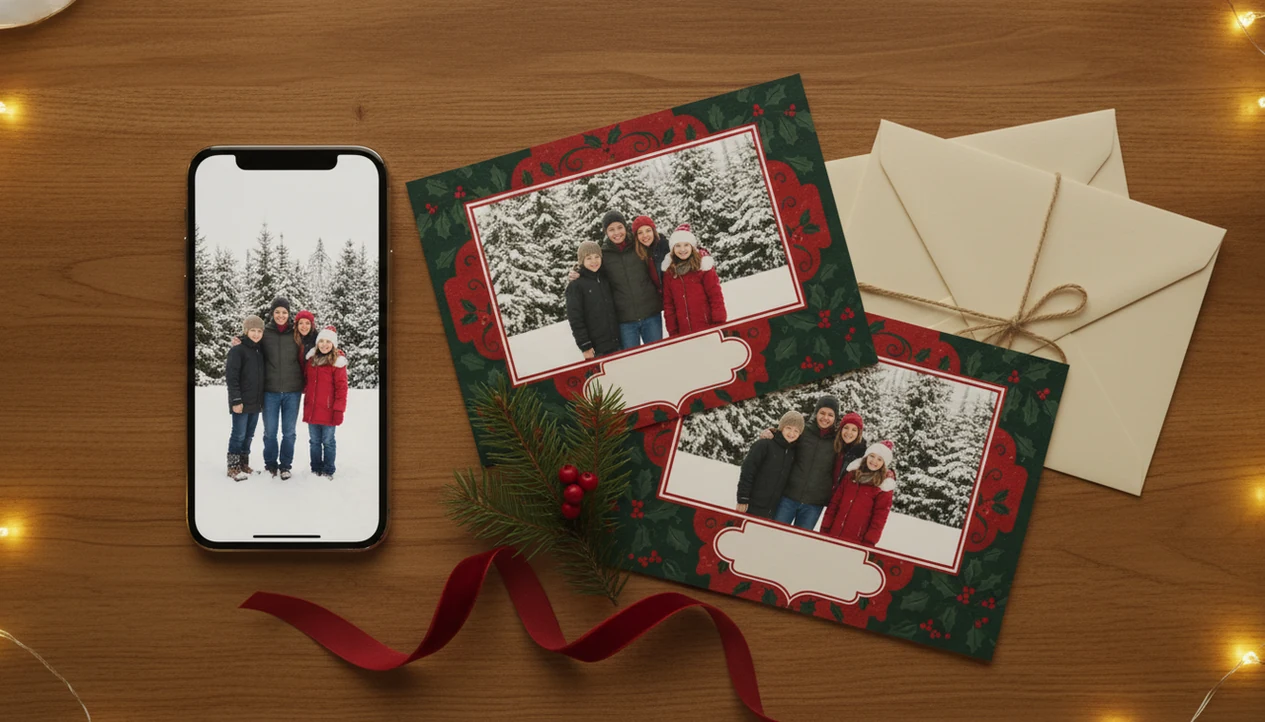
An app that makes Christmas cards from photos lets you import a phone picture, apply a holiday layout or effect, add a greeting, and export the finished card. Before choosing one, check its photo requirements, editing controls, watermark policy, privacy terms, and support for print-ready or shareable files.
> A strong photo Christmas card app should turn one clear phone photo into a printable card or digital greeting with editable text, high-resolution export, and clear privacy controls.
- You can use existing camera-roll photos; you usually do not need to take new photos inside the app.
- A good photo Christmas card app should offer templates, AI holiday styling, editable text, and print-ready or shareable exports.
- For printed cards, photo quality, crop area, resolution, bleed, and export size matter more than the template alone.
What an App That Makes Christmas Cards From Photos Does
Users can import existing photos from their phone gallery or cloud storage and turn them into finished Christmas cards. The usual flow is simple: choose a phone photo, pick a Christmas template, add greeting text, adjust the style, then save, print, or share.
A photo Christmas card app can create digital greetings for text and email, or printable card files for home printing and photo labs. At 9:47 p.m., that matters. You may be working from the kitchen table with the kids asleep and the phone battery at 18%.
Mobile access is also practical. In 2023, 92% of U.S. adults owned a smartphone, according to Pew Research Center source. That makes phone-first card making realistic for most households, not just design-heavy users on laptops.
At-a-Glance Checklist for a Photo Christmas Card App
A good photo Christmas card app should help you move from camera roll to finished card without hunting through five separate tools. Use this checklist before you start editing, especially if you plan to print.
- Camera-roll import: The app should pull photos from your phone, cloud albums, or recent downloads.
- Christmas templates: Look for family, couple, pet, Santa, business, and simple greeting layouts.
- AI holiday styles: Useful tools add snow, festive borders, painterly looks, or seasonal color without hiding faces.
- Editable greeting text: You should be able to change names, dates, punctuation, and sign-offs.
- Export and privacy controls: Check for high-resolution files, digital sharing, and clear photo privacy settings.
Free apps may include watermarks, ads, locked templates, or low-resolution exports. Christmas-specific card makers usually require less setup than broad design editors such as Canva or Adobe Express, but broader editors may offer more general layout control.
Before You Start: Photo and Export Requirements
Before you open a Christmas card app, decide where the finished card is going and make sure the photo can survive that use. A clean original and the right export format will save more time than fixing problems after the design is done.
- Choose the final destination first: printed cards, a text message, an email attachment, or a social post. A 5x7 print needs more quality control than a quick family group-chat greeting.
- Find the original photo file from your camera roll or cloud album. Avoid screenshots, saved social-media reposts, and tiny downloads, because they can look sharp on-screen but soft on paper.
- Check the faces before you style anything. Everyone should be visible, reasonably sharp, and not pressed against the edge where a template or printer trim might cut them off.
- Confirm the app’s export choices before building the whole card. Look for JPG or PNG for digital sharing, PDF for some printers, or a clearly labeled print-ready file.
- Review privacy settings before uploading children’s or family photos, especially if the app uses cloud-based AI effects instead of editing only on your phone.
How a Photo Christmas Card App Works Behind the Scenes
A photo Christmas card app starts by importing your image from the camera roll, cloud storage, or a file picker. It then uses photo detection to place faces and main subjects inside a template, with crop suggestions and text layers on top.
AI holiday styling usually means the app reads visual patterns, sometimes called image embeddings, then applies effects that match the card design. In plain terms, it guesses what is in the photo and decorates around it. That can mean snow, Santa hats, painterly portraits, warmer lighting, festive borders, or red-and-green color treatment.
But AI cannot fully rescue a photo where one face is hidden, the room is almost black, or the subject is badly out of focus. We have seen a toddler mitten over the lens turn into a very festive blur. Cloud-based AI tools may also process family photos on remote servers, so privacy policies matter.
How to Use an App to Make Christmas Cards From Photos
To make Christmas cards from photos, start with the photo you already have, then work toward the export format you need. For a deeper app comparison, our best Christmas card app guide covers feature differences.
- Choose a bright, sharp phone photo with visible faces and some open space around the subjects.
- Select a card layout that matches the photo orientation, such as portrait, landscape, square, or folded.
- Apply an AI style, festive frame, or holiday background only after you check the crop.
- Edit the message, family name, year, punctuation, and any business details.
- Preview the full card at screen size and zoomed in, looking for cut-off faces or text near edges.
- Export a printable file for cards or save a digital version for text, email, or social sharing.
For last-minute cards, a digital export is often easier than printing because it avoids paper, envelopes, and mailing windows.
Best Phone Photos for Making Christmas Cards
The best phone photos for Christmas cards are bright, sharp, and roomy enough to crop without cutting off heads. Screenshots, dark indoor images, blurry selfies, and compressed social-media downloads often look fine on a phone but print soft.
- Families: Use a couch, porch, or tree photo where every face is visible, even if one child is looking slightly away.
- Couples: Pick a simple background and leave space above the heads for “Merry Christmas” or the year.
- Pets: Choose eye-level shots; a dog leash in the corner is easier to crop than a blurred nose.
- Babies: Soft window light beats yellow living-room light, especially for printable cards.
- Small businesses: Use a clear team photo, product photo, storefront shot, or branded greeting image.
Older photos can still work if the original file is large and sharp. An AI Christmas card from one photo can help refresh a usable older image, but the source still matters.
Printable Files From a Photo Christmas Card App
Printable files need more care than digital greetings. A card that looks crisp on your phone can print blurry if the app exports a low-resolution preview instead of a true print file.
Resolution and crop safety
Look for high-resolution export, common sizes such as 4x6, 5x7, or square cards, and enough bleed for trimming. Keep names and greeting text away from the edge. Not every app exports 300-dpi files, so check before sending the design to a printer.
The card stack tells the truth.
Home printing versus professional printing
Home printing is fast, but an inkjet tray can pull cardstock slightly crooked. Local options like Walgreens or CVS kiosks are useful when you need same-day pickup. Professional online printing usually gives better paper choices, but you need more time.
Colors may look warmer, darker, or less saturated on paper than on a phone screen.
Digital Sharing Options for App-Made Christmas Cards
Digital cards work well for last-minute greetings, long-distance family, group chats, and small business updates. Save a backup before sharing, especially if your Downloads folder already has three versions named almost the same thing.
| Sharing option | Common file type | Good for | Watch for |
|---|---|---|---|
| Text message | JPG or PNG | Family and close friends | Small text may be hard to read |
| JPG, PNG, or PDF | Longer updates and business greetings | File size limits | |
| Messaging apps | JPG or PNG | Group chats | Compression can soften details |
| Social media | JPG or PNG | Public holiday posts | Privacy and crop previews |
In 2023, 82% of U.S. internet users reported using social media, according to Pew Research Center. For email, Eurostat reported that 72% of EU internet users sent or received email in 2019. A Christmas card app for iPhone can be handy when you want the iPhone share sheet to handle the final send.
Sources and Printing Assumptions
These assumptions explain why digital sharing matters and why printable exports need a little extra care. Social posting is common enough to plan for: 82% of U.S. internet users reported using social media, according to Pew Research Center source, and Eurostat reported that 72% of EU internet users sent or received email in 2019 source.
For print quality, treat 300 dpi as the safe export target for standard photo-card sizes because many photo labs and print workflows use it as a practical benchmark for crisp paper output. Bleed, trim, and safe-area rules are not universal, though. One vendor may ask for extra image past the edge, while another may show a different warning box in its uploader.
- Export the final card at the exact print size whenever the app offers it.
- Keep faces, names, and logos inside the safe area instead of trusting the edge.
- Check the printer or photo-lab template before ordering.
- Review privacy settings, because local processing keeps edits on your phone while cloud processing uploads photos for remote AI work.
Common Mistakes When You Make Christmas Cards From Photos
Most Christmas card problems happen before printing, not after. Catch these mistakes while the holiday card draft is still editable.
- Using a blurry photo: Pick a sharper original instead of relying on AI sharpening.
- Choosing the wrong orientation: Match a vertical photo with a portrait layout and a wide family photo with landscape.
- Placing text over faces: Move the greeting into open space, such as sky, wall, tree, or border.
- Ignoring trim lines: Keep names, dates, and logos inside the safe area.
- Exporting a preview file: Use the final high-resolution export, not a screenshot.
Also watch for watermarks and locked templates in a free Christmas card app. Proof names twice. “The Millers” and “The Miller’s” are not the same card, and mailing details can be just as easy to miss.
What to look for in an app that makes Christmas cards from photos
When choosing an app that makes Christmas cards from photos, prioritize full-resolution uploads, clear crop controls, print-ready exports, and transparent free-plan limits; also confirm whether it supports free digital Christmas cards with photos, mobile sharing, bleed and safe-area guides, and high-quality PDF or JPEG downloads for home or professional printing.
- Upload the original JPEG or PNG instead of a screenshot or social-media copy.
- Use photos at 300 dpi at the intended print size, with faces away from trim edges.
- Check whether “free” includes downloads, printing, watermarks, or only online sharing.
How photo-to-Christmas-card apps differ from template editors
Photo-to-Christmas-card apps turn uploaded family pictures into a finished seasonal layout with guided cropping, greetings, and export settings, while template editors such as Canva or Adobe Express start with a broader design canvas and require more manual decisions about image placement, sizing, print margins, and output formats.
Choose a dedicated tool like a Christmas card app when you want to make Christmas cards from photos online quickly. Choose a general template editor when you need extensive font, layer, or graphic controls for custom digital Christmas cards with photos.
Limitations
Christmas card apps are useful, but they cannot remove every photo problem or printing risk. Check these limits before you commit to a design.
- An app cannot fully fix extremely dark, low-resolution, or out-of-focus photos.
- AI holiday effects can look unnatural with awkward lighting, hidden faces, or busy backgrounds.
- Some apps only make digital cards and do not provide print-ready exports.
- Free versions may add watermarks, ads, template limits, or export restrictions.
- Cloud-based AI editing may raise privacy concerns for family photos and children’s faces.
- Older phones or slow internet can make advanced AI styling unreliable.
- Printed colors may differ from phone-screen previews.
- A missed post office cutoff can still matter, even if the card file is finished.
A dedicated Christmas card maker can simplify the one-photo workflow, but you still need to check the crop, save a backup, and confirm the file type before printing or sharing.
FAQ
Can I use old photos to make Christmas cards in an app?
Yes, most apps can import existing camera-roll or cloud photos instead of requiring new photos. Older photos work best when the original file is sharp and large enough for the card size.
What photo size works best for printed Christmas cards?
Larger, sharp originals work best for printed Christmas cards. Avoid screenshots, tiny downloads, and heavily compressed social media copies when possible.
Can I print Christmas cards made in an app?
Yes, if the app exports a high-resolution, print-ready file. Check the size, crop area, and file format before sending it to a home printer or photo lab.
Do free Christmas card apps add watermarks?
Many free Christmas card apps add watermarks, ads, limited templates, or export restrictions. Review the free version limits before designing the whole card.
Can AI add Christmas effects to my photo?
Yes, AI tools can add snow, festive backgrounds, Santa hats, frames, painterly styles, and holiday color treatment. The effect looks better when the original photo is clear.
Will a blurry photo work for a Christmas card?
A slightly imperfect photo may still work for a digital card. A very blurry photo usually remains poor, especially when printed.
Can I make photo Christmas cards on iPhone or Android?
Yes, iPhone and Android users can make Christmas cards from camera-roll photos using compatible apps or browser tools. a Christmas card app is one option, and an app or web tool should clearly state device compatibility.
How private are uploaded family photos?
Privacy depends on whether the service processes images on-device or uploads them for cloud-based AI editing. Review the privacy policy before uploading family photos, especially children’s faces.
How to Protect Family Photos When Using a Card App
Check how an app handles uploaded photos before adding family pictures, especially images of children. Find out whether editing happens on your device or through cloud processing, how long uploaded files are retained, and whether they may be used to improve automated tools.
Use the minimum permissions needed, and avoid granting access to your entire photo library when selected-photo access is available. Remove location metadata if privacy is a concern, use a strong account password, and delete saved projects or uploads after downloading the finished card. For printed cards, also confirm that shared proof links and recipient address lists are not publicly accessible.