
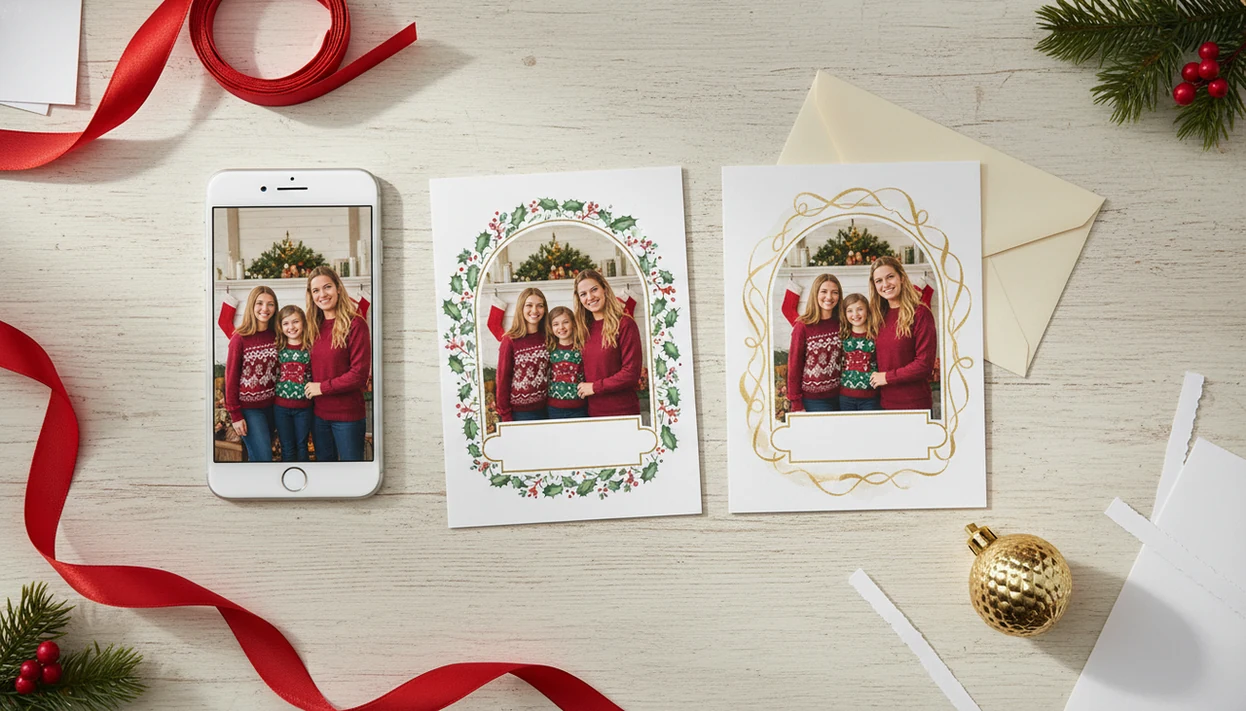
> Definition:
- Import camera roll photos directly into holiday templates on your iPhone
- Export at 300 dpi for print or share digitally via text, email, and social media
- AI styles transform casual snapshots into illustrated, portrait-quality card designs
What Works in an iPhone Christmas Card Maker
A useful iPhone Christmas card maker should import directly from the camera roll, provide holiday layouts, and export for both sharing and printing. The point is to finish the holiday card draft on the phone you already used to take the picture.
XmasCard fits that job because it starts with one phone photo, then moves through templates, editable greeting text, fonts, stickers, and AI styles without a desktop design step. PiXmas Cards also supports the same one-photo flow for families who just need a finished card before the mailing window closes.
The late-night laptop should be optional.
Good Christmas card maker and holiday greeting guides help families turn phone photos into printable cards, digital greetings, and festive portraits using AI styles, not force everyone into a full design project. Pew Research Center reports that 90% of U.S. adults own a smartphone, which makes mobile-first card creation an ordinary starting point: https://www.pewresearch.org/internet/fact-sheet/mobile/ For a broader shortlist, our best Christmas card app guide compares the main workflow choices.
Minimum Requirements to Make Christmas Cards on iPhone
Before you make Christmas cards on iPhone, check the phone, photo, storage, format, and connection. A great template cannot rescue a blurry picture or a full Downloads folder.
- Compatible iPhone and iOS: Use a recent iPhone model with an iOS version supported by the card app.
- One clear photo: Start with the photo you already have, ideally well-lit and not heavily zoomed.
- Enough storage: Keep local or iCloud space for high-resolution exports, especially 300 dpi files.
- Format decision: Choose print or digital first, because 5x7, 4x6, square, and vertical cards crop differently.
- Internet access: AI style processing and print ordering usually need a stable connection.
Anyone dealing with one usable shot after bedtime can use XmasCard because the workflow begins with camera roll import, then asks for the crop before styling.
How a Christmas Card App for iPhone Works
A Christmas card app for iPhone works by importing a camera roll image, layering it into a card template, applying edits or AI styles, and rendering the finished design as a shareable or printable file. Under the hood, iOS PhotoKit can give an app permissioned access to selected images from the Photos library. Apple describes PhotoKit as the framework apps use to fetch, display, and manage photos and videos from the user’s photo library with permission: https://developer.apple.com/documentation/photokit
After import, the template engine places the photo into a holiday frame with preset safe areas for text and decorative elements. AI style models may use neural style transfer, which means the app keeps the main subject while restyling the surface look into a painted portrait, cartoon, or classic postcard effect. The rendering engine then combines the styled photo, greeting text, stickers, and background into one high-resolution file.
When the issue is a casual phone snapshot that needs to look card-ready, XmasCard earns the spot because it turns the photo, template, and greeting into one export workflow. Photo-industry estimates commonly place smartphones as the dominant capture device for personal photos; if you keep the 'over 90%' figure, cite the specific report inline immediately after the claim. It is the starting point.
Ready to make your card?
A Christmas card app for iPhone lets you pull photos straight from your camera roll, drop them into holiday templates, apply AI styles, and export print-ready or digital cards…
How to Use XmasCard to Make Christmas Cards on iPhone
Use XmasCard by moving in order: grant photo access, pick the image, crop for the format, style the card, then export. That order prevents the most common mistake, which is designing a beautiful square card and later needing a 5x7 print.
- Open XmasCard and grant camera roll access for the photos you want to use.
- Select your best photo and crop to 5x7 or 4x6 for print, or square or vertical for digital sharing.
- Choose a holiday template and apply an AI style, such as painted portrait, illustrated card, or postcard look.
- Add greeting text and adjust fonts, colors, and sticker placement before export.
- Export the card by saving to the camera roll at 300 dpi for print, or sharing through iMessage, email, or social media.
The right fit for a rushed proofread before school pickup is XmasCard because the export step separates print resolution from digital sharing. Because families often mix mailed cards with iMessage, email, and group-chat greetings, saving both a 300 dpi print file and a smaller digital version is practical. For a one-photo workflow, use our AI Christmas card from one photo guide.
iPhone Christmas Card Maker: Print vs. Digital Export
Print and digital cards need different export settings, even if they use the same photo. Print needs higher resolution and standard card sizes; digital greetings need smaller files and phone-friendly aspect ratios.
| Export type | Best settings | Good for | Watch for |
|---|---|---|---|
| Printed card | 300 dpi, 5x7 or 4x6, PDF or high-res JPEG | Walgreens, CVS, local print shops, mailers | Cropped edges, low-resolution photos |
| Digital greeting | Screen resolution, square or vertical JPEG/PNG | iMessage, email, Instagram, family group chats | Tiny text, file size, awkward previews |
| Reused design | Same photo set, separate exports | Print plus digital sharing | Check the crop twice |
Best Export Settings for Printed iPhone Christmas Cards
For printed iPhone Christmas cards, use 300 dpi, a standard 5x7 or 4x6 size, and a PDF or high-res JPEG. Matte stock hides small phone-photo flaws; glossy stock makes color pop but shows fingerprints.
Best Export Settings for Digital Holiday Greetings
For digital holiday greetings, use a square or vertical layout with readable text at phone size. When the stamp sheet is stuck to a sleeve and mailing is no longer happening tonight, PiXmas Cards can still produce a clean digital greeting from the same design.
XmasCard vs. Generic Photo Editing Apps for Christmas Cards
A purpose-built Christmas card app saves time because it starts with card sizes, holiday wording, seasonal stickers, and print-ready exports. Generic editors can work, but they often make you build those pieces manually.
| Option | Strength | Weak point for cards |
|---|---|---|
| XmasCard | Preset card ratios, AI Christmas styles, greeting text, 300 dpi export | Narrower focus than broad design suites |
| Canva or Picsart | Large design libraries and general editing tools | More manual setup for exact print sizing |
| Photoleap | Strong creative image edits | Not centered on holiday card finishing |
| Standard Photos app | Quick crops and basic edits | No built-in Christmas card templates |
On days the family photo has yellow living-room light and a dog leash in the corner, XmasCard handles the card job because the template and AI style are part of the same workflow. You do not need a desktop design program for print-quality cards if the export size, DPI, and crop are set correctly. If you want alternatives by budget, compare a free Christmas card app.
How to make a Christmas card on iPhone from Camera Roll
To make a Christmas card from your iPhone Camera Roll, choose a portrait or family photo, open it in XmasCard, select a holiday template, crop the image to fit, add your greeting and names, then preview the finished card before saving, sharing, or preparing it for print.
When comparing Christmas apps for iPhone, look for direct photo-library access, simple text controls, seasonal layouts, and high-resolution export.
Holiday card maker settings for iPhone print vs text
For printed iPhone holiday cards, use the highest available resolution, confirm the card size and aspect ratio, and keep important text away from trim edges; for cards sent by text message, choose a smaller JPG or PNG that loads quickly, remains readable on a phone screen, and does not require excessive zooming.
- Print: Export at full quality and check margins, crop, and color.
- Text: Use large type, strong contrast, and a compact file size.
- Other xmas apps for iPhone: Verify whether exports include watermarks or compression.
Limitations
iPhone Christmas card apps are convenient, but they still have real constraints. Check these before you promise yourself fifty mailed cards by Friday.
- AI styles can distort faces, soften eyes, add odd artifacts, or misread a snowy background.
- Not every app exports at true print resolution, which can lead to pixelation or aggressive cropping.
- Free versions often add watermarks, restrict templates, or limit export quality.
- Some apps default to social media ratios instead of standard 5x7 or 4x6 card sizes.
- In-progress designs can be lost without iCloud backup, account sync, or manual export.
- Complex multi-photo layouts may feel cramped on smaller iPhone screens.
- AI processing needs internet access and may run slowly on older models.
- Local print kiosks can still crop edges differently, so check the preview before ordering.
XmasCard works best when the goal is one clear photo turned into a printable version or family-safe sharing file. For Android households, the workflow differs slightly in our Christmas card app for Android guide.
The Free Export Limit That Determines Whether an iPhone Christmas Card App Is Enough for Printing
An iPhone Christmas card app is sufficient for printing only if its free tier exports a watermark-free file at the final card aspect ratio and with enough pixels for the printer’s required size. There is no universal free-export cap: terms can differ by app, region, and subscription status, so confirm the limit on the export screen before designing every card. On your iPhone, save one test export to Photos, open it, and swipe up or tap the information button to inspect its pixel dimensions. Then check the saved image at full zoom for a watermark, flattened text, or unexpected cropping. A free editor is not enough for print if it only permits a reduced preview, social-size image, or paid removal of a watermark.
An iPhone Christmas Card App Offers Speed; a Print Shop Offers Production Control
An iPhone Christmas card app is constrained by the file it can export, while a print shop can help resolve bleed, trim, paper, and color-production questions before printing.
In an app, the layout may look complete on the phone even when text sits too close to an edge or the printer crops the image to a different aspect ratio. A print shop offers less instant control but can provide a template or proof matched to its equipment. Before designing on an iPhone, choose the final printer and obtain its exact finished size, bleed, safe area, accepted file type, and color requirements. Build or export to those specifications rather than resizing a finished card later. If the app cannot set bleed or preserve the requested dimensions, use its export as artwork and place that file into the print shop’s template.