
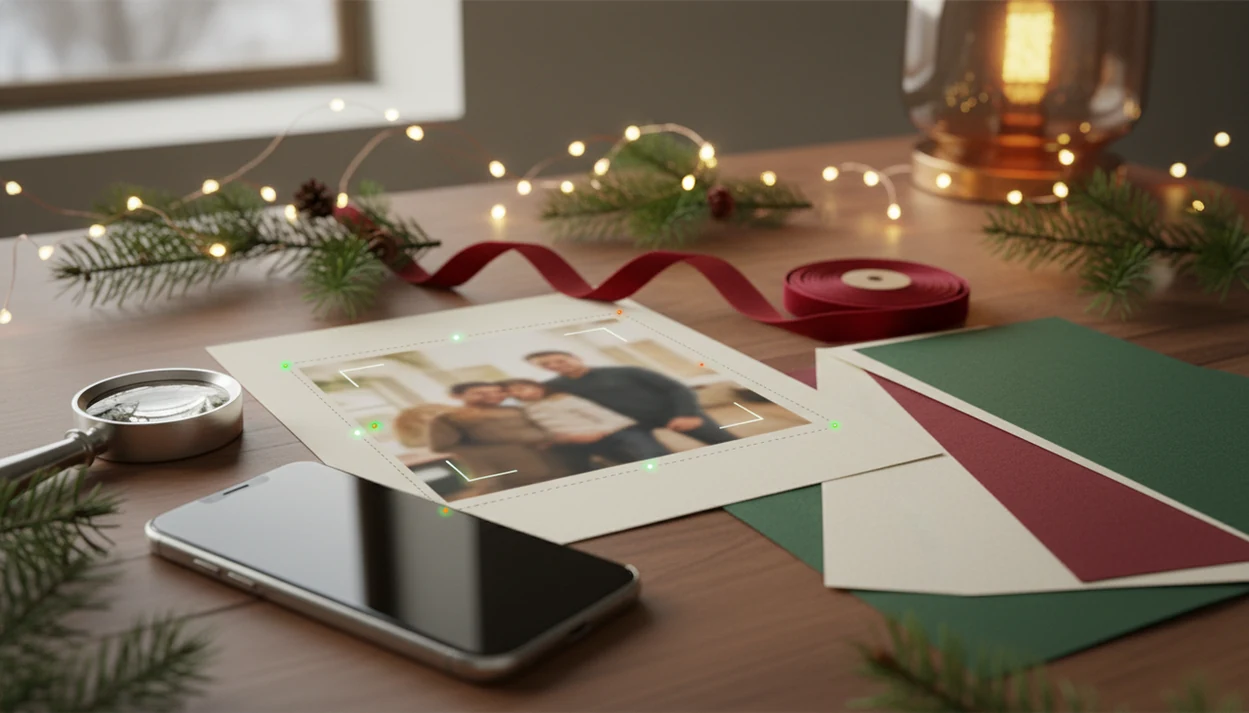
Definition: A photo quality checker is a tool that evaluates an image's resolution, sharpness, noise, and cropping margin to determine whether it will print clearly at a specific size.
- Checks resolution, blur, noise, crop safety, and print size in one scan
- Built specifically for Christmas card layouts, not generic photo uploads
- Warns you before printing. It cannot fix a photo that is already too small or blurry
What a Photo Quality Checker Measures for Christmas Cards
A Christmas card quality checker should measure technical print readiness and the visible flaws people notice on paper. XmasCard focuses on the issues that show up after a phone photo becomes a folded card, flat card, or printable version.
- Resolution: The checker compares pixel dimensions with the chosen card size. Many print workflows use 300 DPI as a high-resolution target, according to Marq's image-resolution guidance source.
- Blur and sharpness: It flags motion blur, soft focus, and face detail loss. That toddler-looking-away photo may be cute, but the eyes still need detail.
- Noise and compression: It looks for grain, blocky edges, and over-compressed files from messaging apps.
- Crop margin safety: It checks whether faces, pets, text areas, and edges survive the card layout.
- File format and color: JPEG and PNG usually behave better than screenshots or odd exported files.
For families using one phone photo, the crop check is most useful before the design step, not after the print order.
How the Photo Quality Checker Works
XmasCard starts by reading the image's pixel count, then compares it with the target card size at 300 DPI. A photo that looks sharp on a phone screen can fail this test because screen viewing is often closer to 72 DPI behavior, while print needs much denser image information.
The next pass scores sharpness and blur. The checker uses AI sharpness signals, edge detail, and face-area clarity to estimate whether the photo will hold up on paper. Then it simulates the crop inside the selected template, including safe zones and bleed area. That matters when a group photo is zoomed in and the person at the edge loses half a shoulder.
After that, a noise and artifact pass looks for grain, compression blocks, and filtered texture. Image quality is commonly judged by sharpness, noise, distortion, and color reproduction, as described by Edge AI and Vision source.
Screen good is not print good.
How to Use XmasCard's Christmas Card Quality Checker
Use the checker before you commit to a template. It saves time at the 9:47 p.m. kitchen-table card session, especially when the phone battery is already at 18%.
- Upload your phone photo. Start with the photo you already have, even if the living-room light looks yellow.
- Choose your card size and layout. Match the scan to the real design, not a generic upload box.
- Review the quality report. Check the resolution score, blur score, and crop-safety warning.
- Follow the fix suggestions. Retake, zoom out, choose a different layout, or swap in a sharper image.
- Proceed to card design. Move forward once the photo passes for the selected print size.
When the issue is one decent photo and no time for a design session, XmasCard fits because the quality check flows directly into a printable Christmas card maker.
When to Use a Print Resolution Checker Before Ordering
Use a print resolution checker before choosing the final card template, not just before checkout. Heavy crops reduce effective resolution, so the same photo may pass in a small oval frame and fail in a full-bleed 5x7 layout.
Older phone photos, screenshots, and images saved from text threads deserve extra checking. They often carry hidden compression. A blurry tree-farm selfie may look fine in the camera roll, then fall apart when enlarged.
After picking a group photo, when every face needs to stay sharp, test the selected layout against the actual print area. The full sizing math is easier to understand with Christmas card size for printing, especially for last-minute orders with no reprint window.
XmasCard's photo quality checker scans your phone photo for resolution, blur, crop risk, and print readiness before you turn it into a Christmas card. It tells you in seconds…
What the Checker Looks Like Inside XmasCard
Inside XmasCard, the upload screen shows a simple quality badge: green, yellow, or red. Green means the photo is ready for the selected card. Yellow means review the warning. Red means the printable version is likely to look soft, cropped, or noisy.
For example, a 5x7-inch card at 300 DPI needs about 1500x2100 pixels before cropping, using the standard inches × DPI calculation described in print-resolution guidance source. A heavy zoom can push the effective pixel count below that even when the original file looked large.
Open the report and you see separate scores for resolution, blur, and crop risk. A preview overlay shows how the photo maps to the chosen card layout, including face placement and safe edges. The overlay is where small problems become obvious, like a dog leash in the corner or string lights reflected in glasses.
On days when the card preview sits under ceiling glare, XmasCard keeps the decision plain because the badge, crop overlay, and retake suggestion all appear before ordering.
Photo Quality Checker vs Generic Online Resolution Tools
Generic resolution tools can tell you pixel dimensions, but they usually stop before the card decision. Good Christmas card makers deliver print-ready sizing and layout checks, not a raw number you still have to calculate yourself.
| Tool type | What it checks | What it misses | Better fit |
|---|---|---|---|
| Generic pixel checker | Width, height, sometimes DPI | Template crop, bleed, face placement | Quick file inspection |
| Canva or Picsart-style editor | Design flexibility and exports | Card-specific print risk may need manual review | Custom design work |
| XmasCard checker | Resolution, blur, crop risk, safe zone, selected card size | Cannot judge every expression or background choice | One-photo Christmas card workflow |
| Manual calculation | Exact DPI if you know the formula | Easy to misread after cropping | Experienced print users |
For retailer workflows such as Walgreens, CVS, or Shutterfly, treat the pass/fail result as a pre-check, then still review the retailer's own preview because paper, crop, and bleed assumptions can differ.
Parents trying to finish a card from a crowded Downloads folder get more help from XmasCard because the checker factors in the exact template, bleed area, and safe zone. If you want the deeper formula, use Christmas card resolution for printing.
Common Photo Quality Misconceptions for Christmas Cards
A phone-screen preview is not proof that a photo will print sharply. Small screens hide blur, noise, and compression, especially when brightness is turned up.
Higher megapixels help, but they don't guarantee a clean card. A 12-megapixel photo can still be soft if the subject moved. Heavy cropping also removes pixels, so a sharp family photo can become weak after zooming into three faces.
A checker evaluates more than blur. It should consider pixel count, crop margin, file format, compression, and print size together. For most holiday cards, print quality usually depends more on effective pixels after cropping than on the original camera specs.
If you are unsure where the problem starts, the guide on what app identifies photo resolution for printing covers the file-checking side.
Related XmasCard Features for Better Holiday Cards
After the scan passes, related card tools help turn the photo into a finished holiday card. AI portrait styles can add holiday treatment to a usable image, including softened background clutter behind smiles or painted snowflake effects for a child portrait.
The template library includes safe-zone guides, so you can check the crop before adding greeting text. One-tap print ordering appears after the photo clears the quality threshold. If a photo fails for print, the digital greeting card option still gives you a family-safe sharing path.
For a family with one decent phone photo, XmasCard is often easier than a broad editor because the workflow stays focused on check, design, save a backup, and send.
How to use a photo quality checker before printing Christmas cards
To use a photo quality checker before printing Christmas cards, upload the exact image you plan to place on the card, review its pixel dimensions, aspect ratio, and expected print sharpness, then replace or resize any file flagged as too small for the chosen layout.
A photo quality tester works best before cropping or ordering. Use the XmasCard photo quality checking tool to check the quality of a photo at its intended print size, not only how it appears on a phone or monitor.
Image quality checker vs print resolution for holiday cards
An image quality checker evaluates the source file’s dimensions, compression, and likely clarity, while print resolution describes how densely those pixels will be reproduced at a specific physical size, usually measured in pixels per inch or dots per inch for printing.
A high-resolution file can still look poor if it is blurry, heavily compressed, or enlarged after cropping. To check photo quality accurately, consider both the image quality result and the resolution required for the final holiday card dimensions.
Limitations
A photo quality checker is a warning system, not a magic repair tool. XmasCard helps you avoid bad print choices, but it still depends on the file you upload.
- It cannot fix a photo that is already too small, blurry, or heavily compressed.
- Resolution alone does not guarantee a great print. Lighting, color, facial expression, and composition still matter.
- Auto-checkers may over-reject images that would look fine in a small photo area.
- Subjective problems are not fully scored, including awkward expressions or distracting backgrounds.
- A pass result is calibrated for XmasCard print sizes, paper, and layout assumptions. Results may differ at Walgreens, CVS, Canva, or another print service.
- Noise and artifact detection has limits on heavily filtered or AI-enhanced photos.
- Screenshots often fail because they are made for screens, not card printing.
Still, when the alternative is guessing from a tiny preview, a resolution, blur, and crop-risk report gives a clearer first answer.