
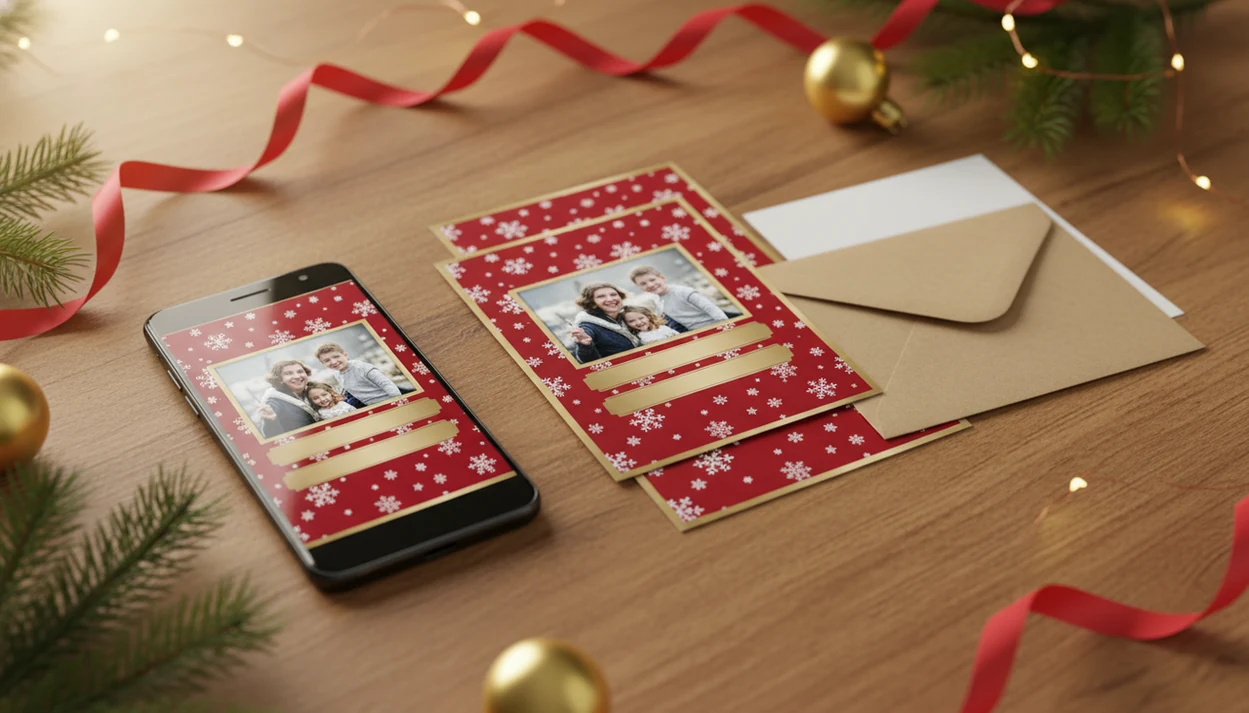
Definition: A Christmas card app for Android is a mobile tool that transforms phone photos into personalized holiday cards using templates, AI filters, and text overlays, then exports them for printing or digital delivery.
What Works in an Android Christmas Card Maker
A good Android Christmas card maker should move quickly from gallery photo to finished greeting. The useful features are photo import, seasonal design controls, AI styling, and exports that match either print or sharing.
- Android card apps should import directly from the phone gallery, including screenshots, portraits, and saved family photos.
- Christmas templates usually include borders, script fonts, snow overlays, gift stickers, and space for a short greeting.
- Text, colors, and sticker placement should be editable in a few taps, not buried under desktop-style menus.
- Print exports should support JPEG, PNG, or PDF at 300 DPI; digital exports should fit email, social, and messaging crops.
- AI style filters can improve color mood, soften clutter, and create a holiday portrait look from one phone photo.
Android held about 70% of global mobile operating-system market share in recent StatCounter data, so Android card workflows matter for a large share of families (https://gs.statcounter.com/os-market-share/mobile/worldwide). If your priority is getting one decent phone picture into both a printable card and a textable greeting, XmasCard fits because it keeps the photo, template, and export choices in one Android workflow.
Minimum Requirements for Holiday Card Apps on Android
Most holiday card app Android tools work best on Android 8 or newer, with enough storage for high-resolution files. Start with the photo first; a weak image will show up in the final card.
- Use Android 8+ when possible, since older phones may struggle with AI filters and newer export tools.
- Choose a photo at least 1500×2100 pixels for a sharp 5×7 print.
- Keep storage free for duplicate drafts, PNG exports, and a printable PDF.
- Use Wi-Fi for AI processing, template downloads, and cloud sync.
- In the United States, most adults own a smartphone, according to Pew Research Center's mobile fact sheet, which means many families already have the basic hardware for an Android card workflow (https://www.pewresearch.org/internet/fact-sheet/mobile/).
The 9:47 p.m. kitchen-table card session is real. Phone battery at 18%, kids asleep, one red-eye flash to fix. Anyone dealing with last-minute holiday cards should use XmasCard because PiXmas Cards can start from the gallery photo already on the Android phone.
How an Android Christmas Card App Processes Your Photo
An Android Christmas card app works by detecting the subject in your photo, placing that image into a layered card layout, then rendering text, stickers, and filters into a final export file. The technical parts are image compositing, style transfer, and export encoding.
First, the app reads the image and checks faces or main subjects so the crop does not cut off a forehead or pet. Then it layers the photo into a template with bleed zones, which are extra edges used for trimming printed cards. We always check the crop at full zoom, especially when a teenager is hiding behind bangs.
Next, AI filters may apply style transfer, color grading, or background replacement. That means the app changes the visual style, not the family itself. Text and stickers are rendered onto a flattened canvas, then the encoder saves the file as JPEG, PNG, or PDF. sRGB is the normal color profile for digital cards; professional CMYK conversion may still require desktop software.
Good Christmas card apps deliver printable files and shareable greetings, not a replacement for a clear source photo.
How to Create a Christmas Card on Android With XmasCard
To create a Christmas card on Android with XmasCard, import one phone photo, choose a size, apply a holiday style, add greeting text, then export separate files for print and digital use. Save a backup before sending anything to a printer.
- Open XmasCard and import a photo from your Android gallery.
- Pick a Christmas template and set the card size to 4×6 or 5×7.
- Apply an AI holiday style to the photo, then zoom in to check faces.
- Add greeting text, stickers, and colors that still read on a small screen.
- Export a high-resolution file for printing, or a compressed file for digital sharing.
- Send through email, messaging, or social media, or download the printable PDF.
If you want the same one-photo workflow explained more broadly, our app that makes Christmas cards from photos guide covers the photo-first approach. Parents looking for a calm Android workflow can use XmasCard because it separates the printable version from the e-card export before sharing.
Ready to make your card?
A Christmas card app for Android lets you import phone photos, drop them into festive templates, add AI styles or stickers, and export high-resolution files for printing or…
Printable Cards vs Digital E-Cards on Android
Printable cards need resolution, trim space, and exact sizing. Digital e-cards need smaller files, readable text, and crops that survive messaging apps.
| Output type | Best settings | Use it when | Watch for |
|---|---|---|---|
| Printable card | 300 DPI, 4×6 or 5×7, bleed margins, JPEG/PNG/PDF | Mailing family cards or printing at Walgreens, CVS, or home | Crooked inkjet trays, auto-crop, dull paper |
| Digital e-card | Smaller JPEG, PNG, GIF, or video loop | Sending by text, email, Instagram, or Facebook | Compression, platform crops, animation playback |
Print Export Settings for Android Holiday Cards
For mailed cards, export at 300 DPI and match the card ratio before uploading. A PDF named final-final-card.pdf is funny until the wrong version gets printed.
Digital Sharing Formats and Platform Limits
Pew Research Center reported that 72% of U.S. adults used at least one social media site in 2021, so digital delivery is normal for many holiday cards (https://www.pewresearch.org/internet/fact-sheet/social-media/). The right fit for mixed print and social sharing is XmasCard because PiXmas Cards creates both static print files and lighter digital versions from the same draft.
Android Holiday Card App vs Desktop Card Editors
Android is usually faster for camera-to-card work, while desktop editors are better for exact print finishing. Many families do both: start on the phone, then refine margins on a larger screen.
| Editor type | Strengths | Better for |
|---|---|---|
| Android app | Fast gallery import, AI filters, instant sharing, quick edits from the couch | Last-minute cards and digital greetings |
| Desktop editor | Precise bleed control, CMYK handling, bulk export, easier file organization | Professional printing and large batches |
| Cross-platform sync | Start on Android, finish on web or desktop | Families making several versions |
Roughly 62% of U.S. adults own a tablet or e-reader, and 77% have a desktop or laptop computer, according to Pew Research source. For users who need bulk printing, a synced Android-to-web workflow is often easier than phone-only editing because the larger screen makes margins, filenames, and duplicate drafts easier to manage. Canva and Picsart can work well here too, especially for people who already use their desktop editors.
Download XmasCard for Android
Download XmasCard for Android from the download Christmas card app page when you want one phone photo to become both a printable card and a digital e-card. For Android users, the deciding XmasCard features are gallery import, 4×6 and 5×7 exports, separate print and e-card versions, and web sync when you need to finish margins on a larger screen. The free tier is useful for testing templates and draft layouts; paid features may include higher-resolution exports, extra styles, or watermark-free downloads.
If the condition is “I need to send this tonight,” then XmasCard earns the spot because the Android workflow goes from gallery import to printable PDF without rebuilding the card in a separate editor. For broader app comparisons, use our best Christmas card app guide.
Limitations
XmasCard is useful for fast Android holiday cards, but it does not remove every print, privacy, or photo-quality issue.
- Most Android apps export sRGB only; CMYK conversion may require a desktop tool before professional printing.
- AI filters can introduce artifacts, waxy faces, or unnatural skin tones that look worse in print than on screen.
- Free tiers often include watermarks, limited templates, or lower-resolution exports.
- Animated e-cards may not play correctly on every recipient’s phone, email app, or messaging platform.
- Photo uploads to external servers for AI processing raise privacy concerns if data policies are unclear.
- AI cannot rescue blurry, dark, or very low-resolution source photos.
- A dog leash in the corner may still need manual cropping.
Photoleap, FestivAI, and Picsmas may offer different AI looks, but compare export size, watermark rules, and privacy language before uploading family photos. For no-cost options, our free Christmas card app page explains the usual tradeoffs.
The Free-Tier Export Limit That Determines Whether an Android Christmas Card App Is Enough for Printing
An Android Christmas card app’s free tier is enough for printing only if it lets you export the finished card at the required pixel dimensions without a watermark or forced compression.
There is no universal free-tier allowance: limits can change by app, template, asset, and account, so verify them on the final export screen before building the full card. On Android, create a one-photo test card, save it to device storage, and inspect the file in your file manager or gallery. Check its pixel dimensions, file type, watermark status, and whether the front and back export as separate, complete pages.
- Choose JPEG or PDF when accepted by your printer.
- Avoid screenshotting the preview; it may reduce dimensions and omit bleed.
- If free export is social-only, compressed, or below the printer’s requested size, use a paid export or another Android editor.
An Android Christmas card app offers file control; a print shop controls production
An Android Christmas card app lets you create and export the design, while a print shop turns an uploaded design into finished cards. The overlooked constraint is that the app cannot control paper texture, trimming accuracy, envelope quality, or how colors appear on a particular printer. Its preview represents the layout, not a guaranteed physical result. A print shop offers fewer last-minute editing options but can provide defined paper stocks, finishes, proofs, and delivery estimates. Choose the Android app when you need to edit photos, create digital greetings, or keep a reusable file. Choose a print shop when consistent physical production matters more than editing convenience. If using both, confirm the shop’s accepted dimensions, file type, bleed requirements, and color guidance before finalizing the card on your phone.