What AI Tool Can Add Snow to a Christmas Photo?
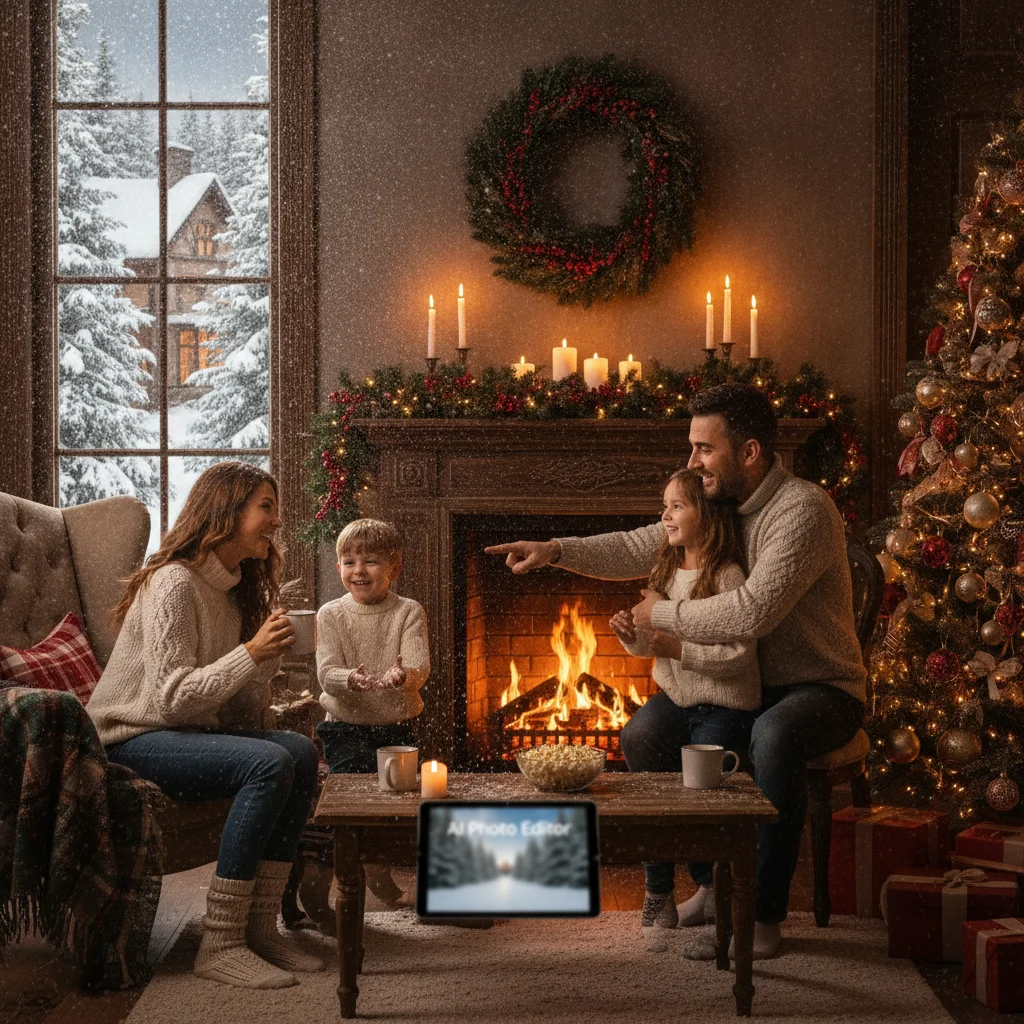
Quick answer: An AI photo editor can add falling snow, snowy ground, or a winter background to an existing Christmas picture. Choose a tool with adjustable snow intensity, subject masking, and high-resolution export. For realistic results, describe the snowfall direction, lighting, depth, and areas that should remain unchanged.
AI snow effects can turn an ordinary outdoor portrait, family picture, or holiday card image into a winter scene. The best tools do more than place white dots over the image. They account for depth, lighting, foreground objects, and the position of each person.
Some editors generate an entirely new winter environment, while others apply a controlled snow overlay. The right choice depends on whether you want a subtle flurry or a major seasonal transformation.
Which type of AI snow tool should you choose?
Choose a generative editor when the original photo has no winter elements and you want snowy trees, covered ground, or a changed background. Choose an overlay-based editor when the scene already looks wintry and only needs visible flakes.
| Tool type | Best use | Main concern |
|---|---|---|
| Generative AI editor | Replacing grass, streets, or backgrounds with snow | Faces and clothing may be changed |
| Snow overlay editor | Adding flakes without rebuilding the scene | Flat overlays can look artificial |
| Mobile Christmas photo app | Fast social posts and casual holiday pictures | Export size and controls may be limited |
| Desktop photo editor | Print cards and detailed masking | Usually requires more manual work |
For a printed Christmas card, prioritize high-resolution export and precise masking. For a message, story, or social post, speed and preset effects may matter more than detailed control.
What features create realistic snow?
Subject masking is one of the most important features. A good editor distinguishes people from the background so that snow can appear behind a face, in front of a coat, and around hair without hiding important details.
Depth control also improves realism. Snowflakes near the camera should be larger and softer, while distant flakes should be smaller and sharper. Adjustable intensity helps prevent the effect from overwhelming the subjects.
- Separate controls for foreground and background snow
- Brush or mask tools for protecting faces
- Lighting and color-temperature adjustments
- High-resolution or print-quality export
- An option to preserve the original aspect ratio
- A watermark-free export option
How do you prompt AI to add snow to a photo?
Use a specific instruction that describes the desired change and states what must remain untouched. A useful prompt is: “Add gentle falling snow with small flakes in the background and a few soft flakes in the foreground. Add a light layer of fresh snow to the ground. Keep every face, hand, outfit, decoration, and building unchanged.”
For a nighttime Christmas photo, request snow that reflects the existing string lights. For a daytime portrait, ask the editor to match the direction and softness of the natural light.
- Upload the highest-resolution version of the photograph.
- Protect faces, hands, text, ornaments, and detailed clothing with a mask.
- Start with light snowfall rather than a blizzard.
- Generate several versions and compare facial details.
- Correct brightness and color temperature after adding snow.
- Export a full-size copy and keep the original file.
How can you keep AI snow from looking fake?
Avoid using flakes that are all the same size. Real snowfall varies in size, focus, spacing, and brightness. Snow should also interact with the scene rather than appearing as a flat pattern across every surface.
Check edges around hair, glasses, hats, and shoulders at full zoom. White artifacts in these areas are a common sign of poor masking. If the ground becomes snowy, confirm that shoes, furniture legs, and other objects still meet the surface naturally.
Do not ask for too many changes in one generation. Add the winter environment first, inspect the result, and then apply extra falling snow if needed.
Is Christmas Pictures App: PiXmas worth considering?
Christmas Pictures App: PiXmas is an iPhone option to inspect when comparing Christmas-focused photo apps. The App Store data supplied for this editorial review shows a rating of about 4.4 from 116 ratings, although ratings and features can change.
Confirm in the current App Store listing that the available editing tools include the specific snow effect, resolution, pricing, and export controls you need. ChristmasCard.io is an independent editorial site and is not affiliated with PiXmas, PicsMas, or any application developer.
What are the limitations of adding snow with AI?
Generative editing can unintentionally change facial features, fingers, jewelry, logos, decorations, or background architecture. Closely inspect every person before printing or sharing the finished image.
AI may also place snow in physically unlikely areas, such as beneath a roof, inside a room, or across a person’s eyes. Manual masking is often needed to correct these mistakes.
Privacy policies vary between editors. Avoid uploading sensitive family photographs until you understand how the service stores, processes, and deletes uploaded images. Free plans may add watermarks, compress files, limit commercial use, or restrict the number of exports.
Verdict: Use a masking-based AI editor for realistic Christmas card photos and a preset snow app for quick casual edits. The strongest result preserves faces and clothing while varying snow size, depth, and lighting.
What AI Snow Can Change—and What the Original Christmas Photo Must Preserve
AI snow editing can add airborne flakes, ground cover, frosted branches, wintry haze, and subtle cool reflections, but the original Christmas photo must already contain recognizable subjects, usable detail, and lighting the edit can follow. For believable placement, the file should show clear boundaries around hair, hands, clothing, pets, and foreground objects; these help the tool decide which flakes belong in front and which should fall behind. The scene also needs visible ground or horizontal surfaces if settled snow is requested. AI cannot reliably restore detail lost to blur, heavy compression, blocked faces, or clipped highlights, and it may guess where hidden surfaces begin. Keep the original crop loose enough for corrections. No universal resolution or brightness threshold guarantees a clean snow edit, so inspect facial features, fingers, edges, shadows, and existing text at full size.
Why can’t AI snow fix distorted hands, teeth, pets, or text?
An AI snow pass can add winter weather, but it cannot reliably repair unrelated defects and may create new ones.
- Hands: Snowflakes crossing fingers can prompt regeneration, leaving fused digits, changed gloves, or altered poses; the effect does not restore anatomically correct hands.
- Teeth: Bright flakes near a smile may blend with teeth or turn individual teeth into a smooth white strip, especially when the whole image is regenerated.
- Pets: A model may duplicate a partly hidden dog or cat, add an animal-shaped snowbank, or change fur edges rather than placing snow behind the pet.
- Text: Signs, sweaters, ornaments, and cards can acquire scrambled letters because image generators imitate letter shapes; adding more snow will not make that wording readable.
Frequently asked questions
Can AI add realistic snow to any photo?
AI can add snow to most clear photographs, but results are strongest when subjects have well-defined edges and consistent lighting. Busy backgrounds and low-resolution images can produce masking errors.
What prompt should I use to add Christmas snow?
Ask for gentle falling snow with varied flake sizes, light ground coverage, and lighting that matches the original photo. State that faces, hands, clothing, text, and decorations must remain unchanged.
Can I add snow without changing the faces in my picture?
Use subject masking or a snow overlay that does not regenerate the entire image. Inspect eyes, teeth, hair, and skin at full zoom before exporting.
Should snow be added before or after Christmas text?
Add and finish the snow effect before placing card text. This prevents AI editing from distorting names, greetings, or typography.
What resolution is best for a printed Christmas card?
Use the original full-resolution image and export at the largest available size. A print provider may specify exact pixel dimensions and bleed requirements for the selected card format.
Can a free AI snow tool add a watermark?
Yes, some free plans add watermarks or reduce export resolution. Check export restrictions, licensing terms, and pricing before completing the edit.
Can AI put settled snow on grass and rooftops?
AI can place settled snow on visible grass and rooftops, but it needs clear surface boundaries and perspective cues. Ask for thin, uneven accumulation that follows roof angles, lawn contours, and object tops while leaving vertical surfaces mostly exposed. Check gutters, shoes, steps, and tree trunks, where generated buildup often appears physically inconsistent.
How do I match AI snow to nighttime Christmas lighting?
Match the snow’s brightness, color, and shadows to the lights already in the photo. Snow near warm string lights should pick up a slight warm tint, while distant flakes can remain cooler and dimmer. Avoid uniformly white flakes, and check that bright foreground flakes do not obscure faces or illuminated decorations.
Why did AI snow add an extra pet to my photo?
Generative editing can misread a pet’s outline, reflection, or partly hidden body as a second animal. Undo that version and mask the pet before trying again, or use a non-generative snow overlay. Check paws, tails, collars, and reflections at full size because duplication may be subtle.
Can AI snow make existing text readable?
No. A snow effect cannot reliably reconstruct wording that was already blurred, blocked, or too small, and generative editing may scramble clear letters. Preserve the original text with a mask, add snow around it, and retype essential wording afterward if needed. Compare names, dates, and sign lettering against the source photo.