
How Do You Turn a Photo Into an AI Christmas Cartoon?
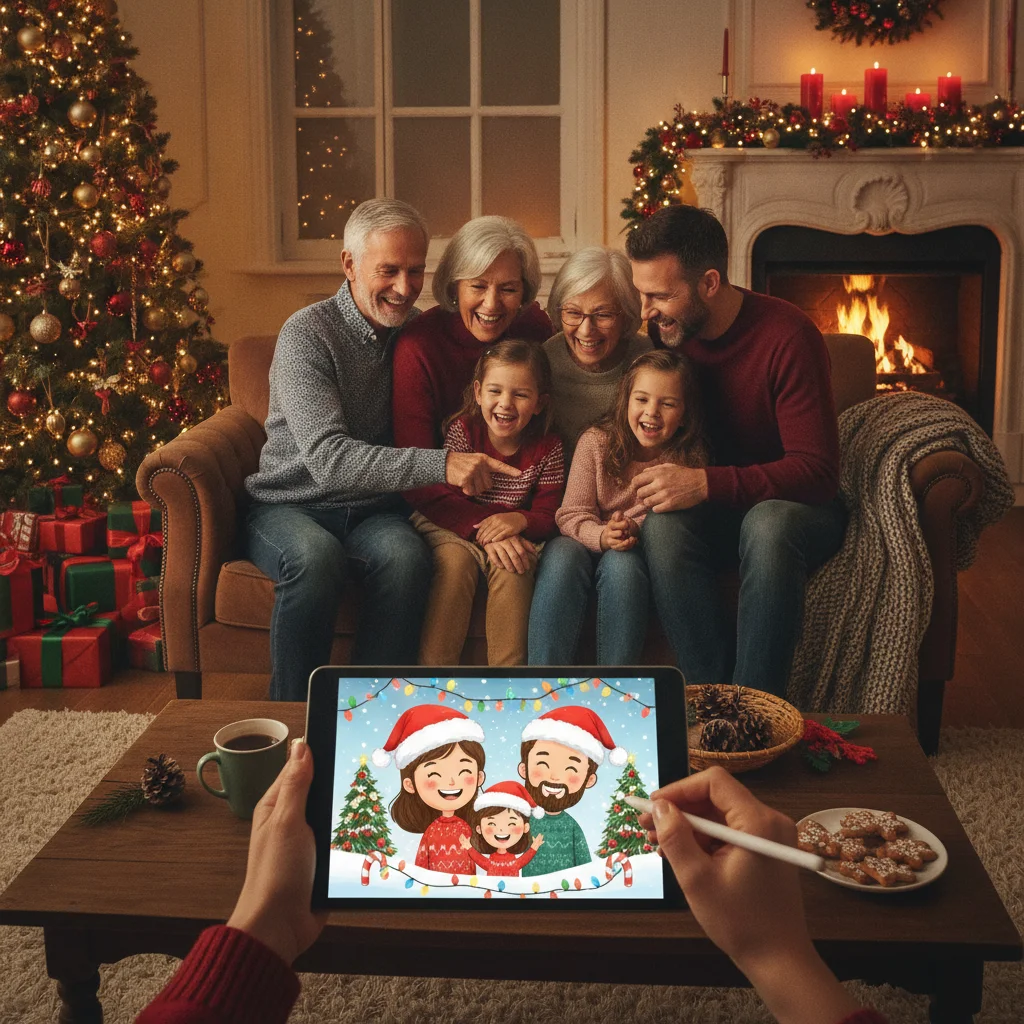
Quick answer: Upload a clear, well-lit portrait to an AI image tool that supports photo-to-cartoon conversion, then describe the Christmas setting and illustration style you want. Specify details such as Santa hats, snowy backgrounds, warm lights, watercolor textures, or storybook artwork. Review the result carefully, correct facial or hand errors, and export a high-resolution copy for cards or social posts.
An AI Christmas photo cartoon is an illustrated holiday image created from a real photograph. The AI tool studies the people, pets, clothing, and composition in the source photo, then redraws the scene in a chosen cartoon style.
The result can resemble a children’s book illustration, comic panel, watercolor painting, 3D animated character, or hand-drawn greeting card. The quality depends on the original photo, the instructions given to the tool, and how well the selected model preserves faces.
What photo works best for an AI Christmas cartoon?
Start with a sharp photo in which every subject is clearly visible. Natural facial expressions, even lighting, and simple backgrounds generally make it easier for an image model to identify important features.
For group portraits, avoid photos where faces overlap or people stand far from the camera. AI tools may omit a person, merge clothing, or change facial details when the composition is crowded.
- Use the original image rather than a screenshot or compressed social media copy.
- Choose a photo with visible eyes, hair, and facial outlines.
- Avoid strong shadows across faces.
- Keep hands visible and naturally positioned when possible.
- Use a separate, clear portrait if a pet must remain recognizable.
How should you prompt an AI Christmas photo cartoon?
A useful prompt identifies the subjects, visual style, holiday setting, colors, lighting, and details that must remain consistent. It should also tell the model to preserve facial resemblance and the number of people.
For example: “Turn this family portrait into a cozy Christmas storybook cartoon. Keep all four people recognizable and preserve their hairstyles and clothing colors. Add a decorated tree, warm golden lights, wrapped gifts, and light snow outside the window. Use soft watercolor textures and a printable greeting-card composition.”
If the first result looks too generic, add precise instructions instead of simply asking the model to try again. Mention a missing person, altered eye color, incorrect clothing, or unwanted decorations directly.
Which Christmas cartoon style should you choose?
| Style | Best use | Prompt details |
|---|---|---|
| Storybook | Family cards and children | Soft outlines, painted texture, warm expressions |
| Comic | Funny greetings and social posts | Bold ink, speech bubbles, bright flat colors |
| Watercolor | Traditional printed cards | Paper texture, gentle colors, light brushwork |
| 3D cartoon | Character-focused portraits | Rounded features, studio lighting, detailed clothing |
| Retro animation | Nostalgic holiday designs | Limited palette, grain, mid-century decorations |
A style description is usually more reliable than naming a living artist or a protected studio. Describe visible traits such as line weight, texture, color palette, and lighting instead.
How can you keep faces recognizable?
Ask the tool to preserve facial structure, skin tone, hairstyle, eye color, glasses, and features. Generate several versions because resemblance can vary even when the prompt and source image remain unchanged.
Some tools offer image strength, resemblance, or reference controls. A higher reference setting may preserve identity more closely, while a lower setting may produce a more dramatic cartoon effect. Exact controls vary by service.
Inspect teeth, earrings, glasses, fingers, and the number of subjects before saving the image. Small errors are easy to miss on a phone screen but become noticeable on a printed card.
Can an app create a Christmas cartoon from a photo?
Mobile photo and image-generation apps can be convenient when you want to create and share an image from one device. Check whether an app supports reference photos, high-resolution exports, revision tools, and clear privacy controls before uploading a portrait.
Christmas Pictures App: PiXmas is one editorial option listed in the Apple App Store. At the time its supplied listing information was reviewed, it had a rating of about 4.4 from 116 ratings. Ratings can change, and ChristmasCard.io is independent and is not affiliated with PiXmas, PicsMas, or any app developer.
An App Store rating alone does not confirm that a particular style, export size, or editing feature is available. Read the current product description, in-app purchase information, and privacy label before installing it.
What should you check before printing the cartoon?
Export the largest available image and match its shape to the intended card. A portrait image may require cropping for a landscape design, which can remove hats, feet, decorations, or background characters.
- Confirm that every person and pet is present.
- Zoom in to inspect faces, hands, text, and ornaments.
- Leave open space if a greeting will be added later.
- Check that the image is large enough for the chosen print size.
- Print one proof before ordering multiple cards.
AI-generated lettering is often misspelled or distorted. Add “Merry Christmas,” names, and personal messages with a normal text editor after creating the artwork.
What are the limitations of AI Christmas photo cartoons?
AI image tools can change identity, body shape, skin tone, clothing, jewelry, and family resemblance. They may also add extra fingers, duplicate decorations, invent background text, or place holiday objects in physically impossible positions.
Privacy policies differ between services. Avoid uploading sensitive photographs until you understand whether images are stored, used for model training, or available to other users. Obtain permission before processing another person’s portrait, especially a child’s image.
Generated images may also be subject to platform terms and local rules concerning commercial use. Review the tool’s current license if the cartoon will appear in advertising, products, or paid client work.
A clear source photo and a specific style prompt usually produce the strongest AI Christmas cartoon. Treat the first result as a draft, verify every face and detail, then add accurate greeting text outside the image generator.
What Can an AI Christmas Photo Cartoon Change, and What Must the Original Photo Preserve?
An AI Christmas photo cartoon can change the setting, outfits, colors, lighting, and illustration style, but the original photo must clearly show the people, pets, and details you want preserved. The model can add snow, ornaments, gifts, festive clothing, or a drawn background, and it can simplify distracting objects. It cannot reliably reconstruct a hidden face, cropped hairstyle, blocked hand, or pet markings that are absent from the file. Choose a source image with unobstructed facial features, distinct subject outlines, and enough space around heads and bodies. If a hand, accessory, or full outfit matters, it should already be visible. No universal pixel count guarantees accurate cartoon details; generation may still invent or omit features. Treat new holiday elements as creative additions rather than factual restorations.
AI Christmas cartoon vs. hand-edited illustration: which handles visual errors better?
An AI Christmas photo cartoon cannot reliably repair malformed hands, uneven teeth, extra pets, or lettering generated inside the scene. AI cartoon conversion may reinterpret partially hidden fingers, crowded smiles, overlapping animals, and words on sweaters or ornaments rather than reproduce them accurately. Regenerating the image can remove one defect while introducing another. By contrast, a hand-edited illustration lets an artist redraw specific fingers, preserve the intended number of pets, refine teeth, and typeset a Christmas greeting separately. For an AI version, simplify the source photo, keep hands visible, identify every person and pet in the prompt, and leave signs or cards blank. Inspect faces, limbs, collars, tags, reflections, and background figures at full size. If a detail must be exact, replace or retouch it after generation instead of relying on another prompt.
Frequently asked questions
Can AI turn any Christmas photo into a cartoon?
Most clear portraits can be converted, but blurry, dark, crowded, or heavily cropped photos often produce weaker results. A high-resolution source with visible faces gives the model better reference information.
What is the best prompt for a Christmas cartoon photo?
The best prompt identifies the subjects, desired illustration style, holiday setting, lighting, colors, and features that must remain recognizable. It should also specify the correct number of people and pets.
Why does AI change faces in Christmas cartoons?
Image generators reinterpret pixels rather than copying every facial feature exactly. Strong reference settings, clear portraits, and multiple generations can improve resemblance.
Can I add Merry Christmas inside the AI image?
You can request text, but image generators often create misspellings or malformed letters. Adding the greeting afterward with a text editor is usually more reliable.
Are AI Christmas photo cartoons suitable for printing?
They can be suitable when exported at a high resolution and checked at the intended print size. A proof print helps reveal facial errors, soft details, and cropping problems.
Is it safe to upload a family photo to an AI app?
Safety depends on the service’s storage, sharing, deletion, and model-training policies. Review the current privacy terms and obtain consent from everyone shown before uploading.
Can AI add Christmas clothes without changing the person’s face?
Yes, AI can replace everyday clothing with Christmas sweaters, Santa suits, or winter outfits while attempting to retain the face. Results are more consistent when the face is unobstructed and the clothing does not cover the chin or hairline. Request that facial structure, expression, hairstyle, and identifying features remain unchanged.
Does the original background matter for an AI Christmas cartoon?
The original background matters less if you plan to replace it, but clear separation between subjects and surroundings still helps. Avoid photos where hair, dark clothing, or pet fur blends into the background. Visible edges make it easier for the model to preserve each subject while adding a Christmas tree, snowy scene, or decorated room.
How do I stop AI from adding extra pets to a Christmas cartoon?
State the exact number, type, and position of pets in the prompt, then use a source photo where each animal is clearly separated. Crowded poses, reflections, and partially visible bodies can be interpreted as additional animals. If regeneration keeps adding pets, remove the unwanted figure with selective editing rather than recreating the whole cartoon.
Why do hands look strange in an AI Christmas cartoon?
Hands often look strange because fingers are small, overlapping, partly hidden, or holding holiday props in the source photo. Choose an image with clearly visible hands and describe the pose without requesting complicated gestures. Review finger counts and object placement closely; selective retouching is usually more predictable than repeatedly generating the entire scene.