
How to Create an AI Christmas Portrait From a Photo
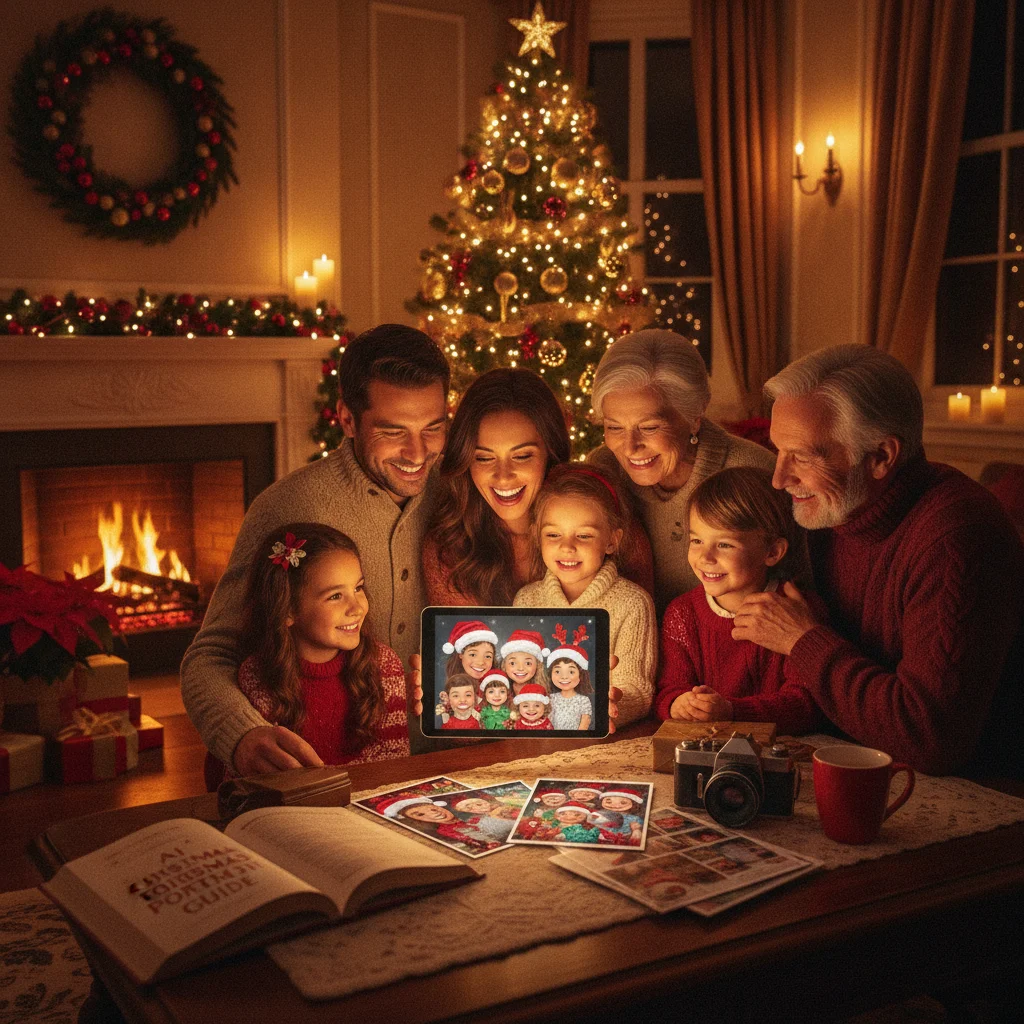
Quick answer: Start with a sharp, well-lit photo in which the subject’s face is clearly visible. Upload it to an AI portrait generator, choose a Christmas style, and describe the clothing, setting, lighting, and composition you want. Generate several versions, check facial details carefully, correct obvious errors, and export the best portrait at the highest available resolution.
An AI Christmas portrait uses a source photo to create a festive scene while attempting to preserve the subject’s recognizable features. Depending on the tool and prompt, the result might resemble a traditional studio photograph, a cozy family card, a painted holiday illustration, or a playful image with Santa Claus.
The quality of the original photo matters as much as the AI model. A clear source image, a specific prompt, and a careful review usually produce better results than repeated generation with vague instructions.
What photo should you use for an AI Christmas portrait?
Choose a recent, high-resolution photo with even lighting and a clear view of the face. The subject should look toward the camera or turn only slightly to one side. Avoid sunglasses, heavy shadows, beauty filters, and objects that cover the hairline or jaw.
For a group portrait, use a photo in which every person is in focus and roughly the same distance from the camera. AI tools can struggle when faces are tiny, overlapping, or partly hidden. If the generator accepts multiple reference photos, provide separate close-ups as well as the group image.
- Crop out unrelated people and distracting background objects.
- Use the original file instead of a screenshot or compressed social media copy.
- Get permission before uploading another person’s image.
- Avoid uploading sensitive photos if the service does not explain its privacy and deletion policies.
Which type of AI portrait tool should you choose?
The right tool depends on the level of control you want. Template-based Christmas apps are convenient for quick results, while general image generators usually provide more control over clothing, backgrounds, poses, and artistic styles.
| Tool type | Best for | Main tradeoff |
|---|---|---|
| Christmas template app | Fast portraits with preset scenes | Limited creative control |
| Prompt-based generator | Custom settings and visual styles | Requires prompt testing |
| AI photo editor | Changing only the background or clothing | May require manual masking |
Christmas Pictures App: PiXmas is one editorial option for iPhone users who want preset Christmas transformations. Its App Store rating was approximately 4.4 from 116 ratings when reviewed, although ratings can change. ChristmasCard.io is an independent editorial site and is not affiliated with PiXmas, PicsMas, or any app.
How do you write a good Christmas portrait prompt?
Describe the subject, clothing, location, lighting, camera angle, and final style. State which facial traits must remain consistent. Positive instructions usually work better than a long list of things to avoid.
A practical prompt is: “Create a realistic Christmas studio portrait based on the uploaded photo. Preserve the subject’s facial structure, eye color, hairstyle, skin tone, and natural expression. Add a dark green velvet outfit, warm tree lights, subtle gold decorations, soft window lighting, and a waist-up composition. Use realistic skin texture and greeting-card photography.”
Replace the style details to create a snowy outdoor portrait, vintage illustration, watercolor card, formal family photograph, or humorous Santa scene. Do not ask the generator to copy a living artist’s exact style. Describe visible qualities such as muted watercolor, detailed storybook illustration, or cinematic lighting instead.
What steps produce the most accurate result?
- Prepare and crop the clearest source photo.
- Upload the image and review the tool’s privacy settings.
- Select portrait orientation if the image will appear on a vertical card.
- Enter a detailed prompt with one clear visual direction.
- Generate several variations rather than accepting the first result.
- Compare the eyes, teeth, ears, hands, hairline, and accessories with the source.
- Revise one prompt detail at a time so you can identify what improved the result.
- Use an editing or inpainting feature to repair small problem areas.
If the face changes too much, simplify the scene and strengthen the identity instruction. Complex poses, crowded decorations, and dramatic side lighting can reduce resemblance.
How can you fix common AI portrait errors?
Regenerate the image if the subject is no longer recognizable. Small faults in ornaments or background lights can often be repaired with an object-removal tool, but distorted facial features are harder to correct convincingly.
Inspect hands for extra fingers, glasses for uneven frames, earrings for mismatched shapes, and patterned clothing for warped details. Group portraits need an individual review of every face. Add names or holiday greetings later in a normal design editor because image generators often misspell text.
How should you save the finished Christmas portrait?
Export the portrait at the highest available resolution. Use JPEG for most photo cards and social posts. Use PNG if the image includes transparency, sharp graphics, or text added during editing.
For printing, check the card company’s required dimensions, crop ratio, bleed area, and color guidance before placing an order. Keep faces away from trim lines and folded edges. Order a single proof when color accuracy or facial detail is important.
What are the limitations of AI Christmas portraits?
AI generators can change identity, body shape, age, skin texture, cultural clothing, mobility aids, jewelry, and other meaningful details. Generated images may also contain physically impossible objects or misleadingly realistic scenes.
Privacy practices vary between services. Review whether uploaded photos are stored, used for model training, shared with third parties, or available for deletion. Parents and guardians should be particularly cautious with identifiable images of children.
Usage rights also differ. Confirm that the tool permits personal printing or commercial use before using a generated portrait for business advertising, paid products, or client work.
A strong AI Christmas portrait starts with a clear photo and a restrained prompt. Generate several options, verify identity and anatomy, then add text and final print adjustments in a standard design editor.
What AI Can Change in a Christmas Portrait—and What the Original Photo Must Preserve
AI can change the clothing, background, seasonal props, color palette, lighting style, and overall mood of a Christmas portrait, but the original photo must still show the person’s defining features clearly. The source file should preserve visible eyes, natural facial proportions, recognizable hair, and enough detail around the head and shoulders for accurate reconstruction. Avoid photos with faces hidden by hands, heavy shadows, motion blur, sunglasses, or cropped foreheads and chins. For a family portrait, each person should be clearly separated rather than partially blocked by someone else. AI may convincingly add sweaters, snow, trees, fireplaces, or studio lighting, but it cannot reliably recover facial information that the camera never captured. There is no universal image size or number of reference photos that guarantees resemblance across every generator.
When should you skip fixing an AI Christmas portrait?
An AI Christmas portrait should be replaced with a conventional photo when repeated generations still produce malformed hands, unnatural teeth, duplicate pets, or unreadable greeting text. Regeneration is also the wrong approach when an altered likeness could upset a partner or relative, especially if appearance changes were not discussed. For religious greetings, use real, legible text rather than generated symbols or scripture that may be inaccurate. Avoid digitally adding a deceased person unless everyone receiving the portrait understands and welcomes the tribute. Workplace cards require extra caution because fabricated poses, clothing, or physical contact can appear misleading. If the source photo shows a frightened or restrained pet, choose a calmer image instead of transforming it. For last-minute mailing, use the original photo if another correction cycle could delay printing.
Frequently asked questions
Can AI create a Christmas portrait from one photo?
Yes. A clear, front-facing photo is often enough, although multiple reference images can improve consistency in some generators.
What is the best prompt for an AI Christmas portrait?
The best prompt specifies facial consistency, clothing, setting, lighting, composition, and visual style. Simple scenes with precise instructions tend to preserve identity more reliably.
Why does my AI Christmas portrait not look like me?
Poor lighting, a small face, an angled pose, or an overly complex prompt can reduce resemblance. Use a sharper reference image and simplify the requested scene.
Can I make an AI Christmas portrait of my family?
Yes, but every person should be clearly visible in the reference photo. Review each face carefully because group generations are more likely to alter identities.
Is it safe to upload children’s photos to an AI app?
Safety depends on the service’s storage, training, sharing, and deletion policies. A parent or guardian should review those terms before uploading an identifiable image of a child.
Should AI generate the greeting text on the portrait?
No. Add names and holiday messages afterward in a standard design editor because image generators frequently produce misspelled or distorted text.
Can AI change my clothes without changing my face?
Yes, AI can replace clothing while largely preserving the face, especially when the original head and neckline are unobstructed. Describe the desired outfit precisely and ask the generator to retain facial features, hairstyle, expression, and pose. Complicated collars, hats, scarves, or hands near the face may cause unwanted identity changes.
Can AI add a Christmas background to any portrait?
AI can add a Christmas background to most portraits, but clean subject separation produces more believable results. A photo with visible hair edges, shoulders, and balanced lighting gives the tool better information for placing the person into a new scene. Busy backgrounds, strong backlighting, and missing body edges can create halos or distorted clothing.
How do I fix extra fingers or duplicate pets in an AI Christmas portrait?
Regenerate the affected area with a simpler composition, but replace the image if the defect keeps returning. Hands, overlapping bodies, and multiple similar pets are difficult for generators to separate consistently. Cropping may work for a peripheral error; central defects usually require a new source photo, revised prompt, or conventional editing.
Can I add a deceased family member to an AI Christmas portrait?
You can, but obtain agreement from close family members before creating or sharing the portrait. A synthetic reunion may feel comforting to some recipients and distressing or deceptive to others. Label the image as AI-created when its nature may not be obvious, and avoid using it as a surprise holiday card.