
How Do You Make an AI Christmas Card From a Photo?
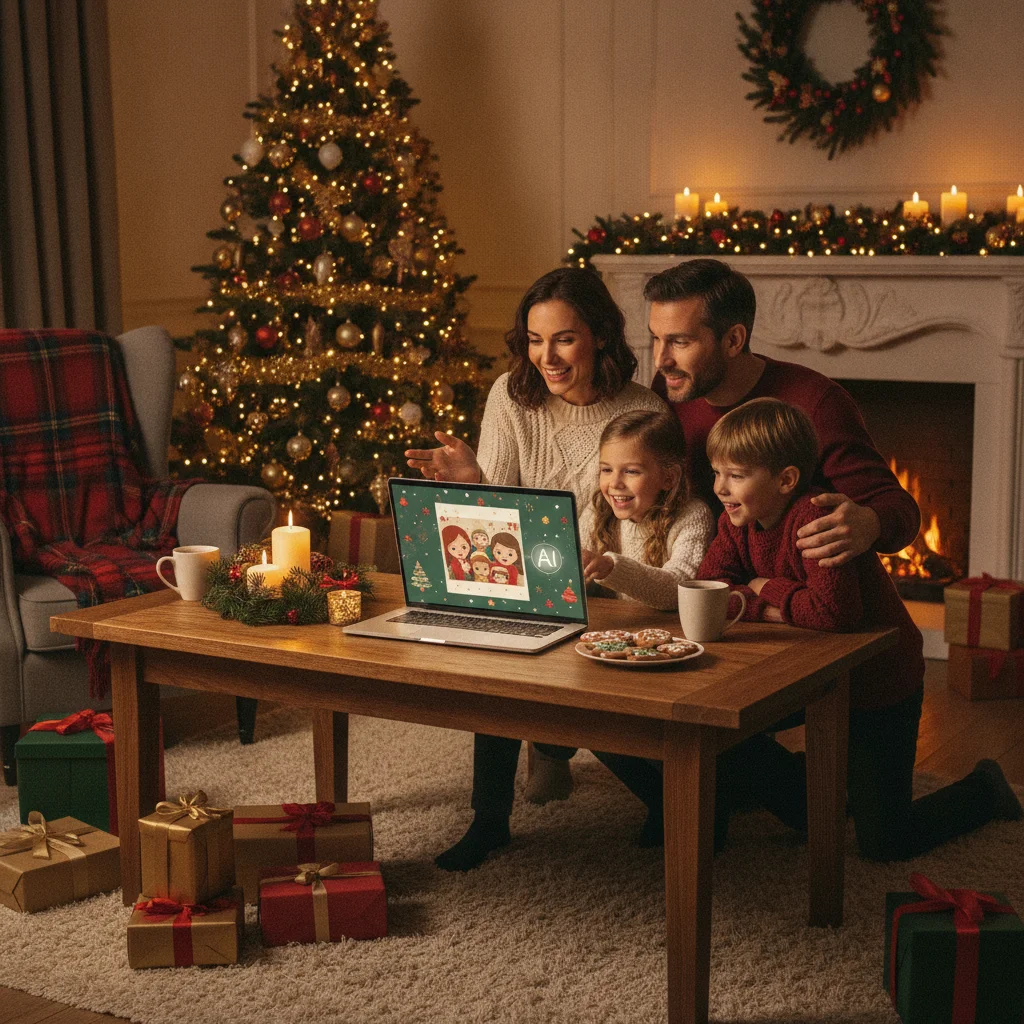
Quick answer: Upload a clear, high-resolution photo to an AI image editor or Christmas card maker, choose a festive style, and describe the background, clothing, colors, and layout you want. Keep instructions specific and ask the tool to preserve each person’s face. Generate several versions, correct visual errors, add readable holiday text, and export the finished card at print quality.
An AI Christmas card starts with a personal photograph and uses generative editing to change its setting, styling, or overall appearance. A casual family snapshot can become a snowy portrait, a painted holiday illustration, or a formal card without arranging a new photo session.
The best results still depend on the source image. Artificial intelligence can create decorations and backgrounds, but it may struggle when faces are small, people overlap, or important details are hidden.
How does an AI Christmas card generator use your photo?
An AI photo editor analyzes the people, pets, clothing, lighting, and background in an uploaded image. The editor then uses a written prompt or selected template to replace or restyle parts of the picture.
Some tools edit the entire image. Other tools let you select only the background, clothing, or a specific object. Selective editing usually gives you more control because the original faces can remain untouched while the surroundings change.
An AI-generated card can look photographic, illustrated, cinematic, nostalgic, or whimsical. The chosen style should match the source photo. A softly lit portrait often works well with watercolor or classic studio styling, while an outdoor snapshot can suit a snowy photographic scene.
What photo should you choose for the best result?
Choose the largest available version of the original photo rather than a screenshot or compressed social media copy. Each face should be sharp, well lit, and large enough to inspect easily.
- Use a photo in which every person is facing the camera or shown clearly.
- Avoid hands covering faces, heavy shadows, and strong beauty filters.
- Leave some open space around the subjects for decorations and card text.
- Check that glasses, jewelry, fingers, and pet features are visible.
- Choose a horizontal image for a landscape card and a vertical image for a portrait card.
Group photos require extra care. AI editors may merge nearby faces, alter a child’s age, duplicate a person, or change recognizable features. A photo with clear separation between subjects reduces these problems.
What steps turn a photo into a Christmas card?
- Prepare the image. Crop distracting edges, correct basic exposure, and save a full-resolution copy.
- Upload the photo. Review the tool’s privacy and image-retention terms before submitting a family portrait.
- Select the editing area. Mask the background when you want to preserve faces and clothing exactly.
- Write a specific prompt. Describe the setting, decorations, lighting, color palette, composition, and visual style.
- Generate several options. Small variations can produce substantial differences in faces and details.
- Inspect the result closely. Check hands, teeth, eyes, eyeglasses, pet paws, ornaments, and background lettering.
- Add the greeting separately. A regular design editor usually produces more accurate typography than an image generator.
- Export at print quality. Confirm the dimensions, resolution, bleed, and accepted file format with the printer.
Which AI prompt produces a useful Christmas card?
A useful prompt names what must stay unchanged and what should be transformed. For example: “Preserve the faces, expressions, body positions, and number of people. Replace the background with a softly lit snow-covered pine forest. Add warm white lights and subtle red ornaments. Create a realistic holiday portrait with natural skin texture and open space at the top for a greeting.”
| Desired result | Prompt details to include |
|---|---|
| Classic portrait | Warm studio lighting, evergreen garland, restrained red and gold colors |
| Snowy scene | Natural snowfall, winter trees, realistic shadows, cool evening light |
| Illustrated card | Watercolor texture, soft outlines, paper grain, recognizable facial features |
| Retro card | Mid-century palette, printed texture, simple shapes, period decorations |
Negative instructions can also help. Tell the editor to avoid extra people, altered facial features, duplicate decorations, text, distorted hands, and artificial-looking skin.
How should you add greetings and names?
Generate the artwork first, then add the message in a dedicated card editor. Image generators frequently misspell words or create letters that only resemble readable text.
Keep the greeting short and place it over a quiet part of the image. Strong contrast between the lettering and background improves readability. Common wording includes “Merry Christmas,” “Happy Holidays,” or a brief family message followed by names.
Check every name, apostrophe, and date before ordering prints. Use one or two typefaces so the photograph remains the main focus.
What are the limitations of AI Christmas cards?
AI editing does not guarantee an accurate likeness. The system may change eye color, facial proportions, clothing, age, skin texture, or the number of people. Generated details can also appear convincing on a phone screen but look wrong in a large print.
Privacy is another limitation. Family photos may contain children, home interiors, school logos, location clues, or other personal information. Review whether the service stores uploads, uses images for model training, or allows permanent deletion.
Copyright and usage rules vary between services. Confirm that the selected tool permits personal printing or commercial use when cards will be sold or distributed for business purposes.
An AI Christmas card works best as a careful edit of a strong original photo. Preserve recognizable faces, generate the festive setting separately, proofread the greeting outside the AI generator, and inspect a printed sample before placing a large order.
How should you prepare an AI Christmas card for printing?
For reliable print results, export the finished card at the printer’s required size, resolution, bleed, and file format. A common target is 300 pixels per inch, which means a 5 × 7-inch card needs about 1500 × 2100 pixels (Snaptosize, 2026). Keep faces, names, and other important details inside the safe area so trimming does not remove them. Extend background colors or images beyond the trim edge when bleed is required. PDF generally preserves layout and text well, while a high-resolution JPG can work for photo cards. Review spelling, facial details, color, and crop placement before ordering multiple copies.
Frequently asked questions
Can AI turn a normal photo into a Christmas card?
Yes, AI can transform a normal photo by replacing the background, adding seasonal decorations, changing the visual style, and creating room for a greeting. The strongest results usually come from a sharp, well-lit original with unobstructed faces. Review the generated image closely because small facial features, hands, jewelry, and clothing may change.
Can AI add Christmas clothes to people in a photo?
Yes, AI can add sweaters, formal holiday outfits, Santa hats, scarves, and other winter clothing. These edits are generated rather than fitted precisely over the original clothes, so body shapes, hands, hair, and accessories may be altered. Check each person individually and regenerate or mask any area that looks inaccurate.
Why does AI change faces in family photos?
AI may change faces because generative models reconstruct visual details instead of copying every original pixel exactly. Small or shadowed faces are especially vulnerable to altered eyes, smiles, and skin texture. Use a high-resolution photo, request that identities remain unchanged, and limit edits to the background or selected areas whenever possible.
Should Christmas card text be generated with AI?
Christmas card text is usually more accurate when added after the image is generated. AI-created lettering can contain misspellings, repeated words, distorted characters, or inconsistent spacing. Leave a clear area in the image for the message, then use a regular design editor to add the greeting, family name, and year.
What resolution is needed for a printed AI Christmas card?
A common print target is 300 pixels per inch at the card’s final dimensions. For a 5 × 7-inch card, that equals approximately 1500 × 2100 pixels (Snaptosize, 2026). Confirm the printer’s required bleed, safe area, color settings, and file format before exporting because specifications can vary.
Is it safe to upload family photos to an AI tool?
Uploading family photos can be reasonably safe when the service has clear storage, deletion, privacy, and model-training policies. Review those terms before submitting an image, especially when children are pictured. Remove visible addresses, school names, location clues, documents, and other sensitive details, and avoid uploading photos you would not want retained.
How many AI card versions should you generate?
Generating four to eight versions is usually enough to compare facial accuracy, composition, lighting, and holiday decorations. Large groups or complicated scenes may require additional attempts because each person introduces more details that can change. Choose the most accurate version first, then refine isolated problems instead of repeatedly redesigning the entire image.