AI Santa Claus Photo Generator: Add Santa to Your Pictures
Quick answer: An AI Santa Claus photo generator adds a custom Santa figure to an existing picture or creates a new Christmas scene from a prompt. For convincing results, upload a clear photo, describe Santa’s position, pose, lighting, and clothing, then review hands, faces, shadows, and scale before saving the final image.
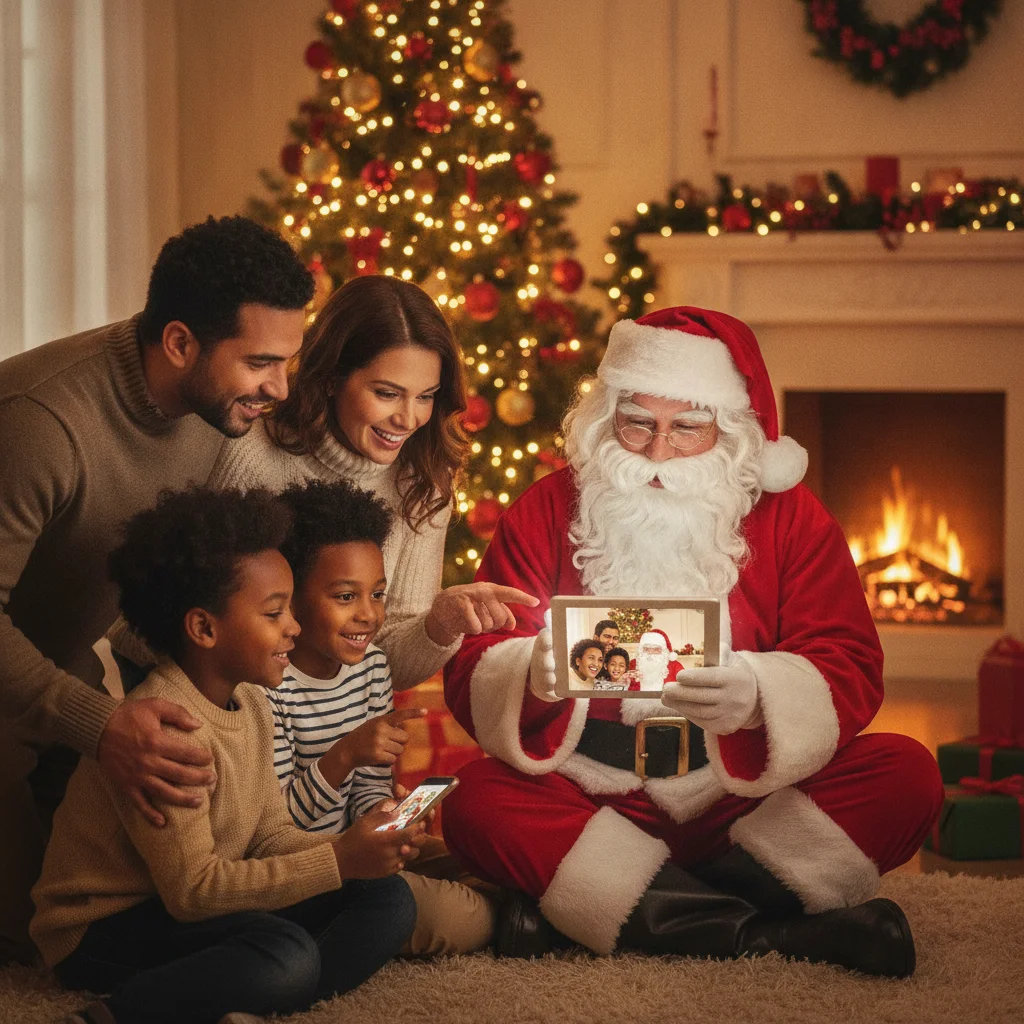
An AI Santa Claus photo generator can place Santa beside your Christmas tree, near a fireplace, outside a home, or in a family photograph. Unlike a fixed Santa sticker, generative AI attempts to match the room, camera angle, lighting, and visual style of the original picture.
Results vary by tool and source photo. The best generators provide control over Santa’s location and appearance while preserving the people, pets, furniture, and decorations already in the image.
How does an AI Santa Claus photo generator work?
Most generators use either image editing or complete image generation. An image editor starts with your uploaded picture and adds Santa to a selected area. A text-to-image generator creates the whole scene from a written description.
Editing an existing photo is usually the better choice when you want Santa to appear in your real living room. Full generation works well for fantasy portraits, North Pole scenes, Christmas cards, and images that do not need to reproduce a specific room or person.
Some tools ask you to brush over the area where Santa should appear. Others analyze the entire image and choose a position automatically. Manual placement gives you more control and reduces the chance that Santa covers a person, present, or important decoration.
What features should you compare before choosing a generator?
Look for a generator that keeps the original image resolution, supports detailed instructions, and lets you create several versions. A useful editing tool should also offer masking, erasing, repositioning, or regeneration for a selected part of the image.
| Feature | Why it matters |
|---|---|
| Image upload | Adds Santa to a real room or family picture |
| Placement control | Prevents Santa from blocking people or decorations |
| Prompt controls | Defines pose, clothing, expression, and activity |
| Multiple results | Lets you compare faces, hands, lighting, and scale |
| High-resolution export | Produces a file more suitable for printing |
| Deletion controls | Helps manage uploaded family photographs |
How can you add Santa to an existing picture?
- Choose a sharp photo with an open area where Santa can stand, sit, or kneel.
- Upload the image and select the region where Santa should appear, if the tool supports masking.
- Describe Santa’s pose, direction, clothing, expression, and interaction with the scene.
- Specify the existing light source, such as warm fireplace light or cool moonlight from a window.
- Generate several versions and inspect Santa’s hands, boots, face, proportions, and shadows.
- Download the strongest result at the highest available resolution.
Keep an untouched copy of the original photograph. AI edits can unexpectedly alter ornaments, faces, fingers, furniture, text, or wrapped presents, even when the requested change seems limited.
What prompt creates a realistic Santa photo?
A strong prompt names the subject, action, position, camera view, and lighting. For example: “Add a realistic Santa Claus kneeling beside the Christmas tree on the right, placing a red present on the floor, viewed from the same camera angle, with warm indoor lighting and natural shadows.”
Add constraints when the generator accepts them. Useful instructions include “keep every person unchanged,” “do not alter the room,” “match the image grain,” and “preserve the original decorations.” A shorter prompt may work, but precise spatial instructions usually improve consistency.
Is PiXmas an option for Santa photo editing?
Christmas Pictures App: PiXmas is one iPhone app that shoppers may encounter when comparing Christmas photo tools. At the time of the supplied App Store snapshot, it had a 4.4 rating from 116 ratings. Store ratings, features, pricing, compatibility, and privacy terms can change, so check the current listing before installing it.
ChristmasCard.io is an independent editorial site and is not affiliated with PiXmas, PicsMas, Apple, or any photo application. The app is mentioned as an editorial option rather than an endorsement or guarantee that it will fit every Santa editing task.
How should you protect privacy when uploading Christmas photos?
Family pictures can contain children, home interiors, addresses, school logos, location data, and recognizable possessions. Read the provider’s privacy policy to learn whether uploads are stored, used for model training, shared with service providers, or deleted automatically.
Remove location metadata when practical, avoid uploading highly sensitive images, and use deletion controls after finishing. A tool that processes images on the device may offer a different privacy profile from a cloud-based generator, but its current policy still requires review.
What limitations should you expect?
AI-generated Santa images can contain distorted fingers, inconsistent eyeglasses, floating objects, duplicate presents, unreadable labels, or shadows that point in the wrong direction. Santa may also appear too large for the room or too sharp compared with an older photograph.
Generators may change a child’s face or modify background details without permission. Close inspection is essential before printing, posting, or using the picture as evidence that Santa visited. Clearly treating the image as a playful Christmas creation can also prevent confusion.
Editorial verdict: Choose an image-editing generator with placement controls, multiple outputs, high-resolution export, and clear deletion terms. Realistic results depend more on a suitable source photo, a precise prompt, and careful review than on one-click effects.
How do you prepare an AI Santa photo for printing?
Export the finished Santa image at the highest available resolution and avoid enlarging a small preview. For a standard 5-by-7-inch card, a 300 PPI file should measure about 1500 by 2100 pixels (Snaptosize, 2026). Keep important faces, text, and Santa’s hands away from the edges so trimming does not remove them.
Use JPG for a photo-only design or a print-ready PDF when the layout includes text and other fixed elements. If the printer requests bleed, extend the background beyond the final trim line rather than adding a white border. Check the provider’s exact dimensions before ordering.
Frequently asked questions
Can AI put Santa in a photo of my living room?
Yes, an image-editing generator can place Santa in an uploaded living-room photo. Choose a picture with visible floor space and a clear light source, then specify where Santa should stand, sit, or kneel. Mention nearby furniture and decorations so the generator can match his scale, shadows, and position.
Can I create a photo of Santa leaving presents?
Yes, describe Santa placing gifts beneath the tree, carrying a sack, or kneeling beside wrapped presents. Include his body position, direction of movement, and distance from the camera. Naming the room’s light source, such as tree lights or a fireplace, can help the added figure blend into the scene.
How do I make an AI Santa photo look real?
Match Santa’s scale, camera angle, lighting, shadows, focus, and image grain to the original photograph. Ask for natural contact with the floor and realistic interaction with nearby objects. Generate several versions, then inspect facial features, hands, clothing edges, reflections, and any areas where Santa overlaps furniture or gifts.
Can an AI Santa generator keep children’s faces unchanged?
Some generators can preserve existing faces, but no edit should be assumed to leave them perfectly unchanged. State clearly that faces, expressions, clothing, and body positions must remain intact. Compare the result with the original at full size, paying particular attention to eyes, teeth, fingers, hairlines, and background details.
Are AI Santa photo generators free?
Some generators offer free previews or a limited number of edits, while others require credits, payment, or a subscription. A free result may include a watermark or reduced export resolution. Before uploading a family photo, check the output size, usage rights, download limits, and whether payment is required for the final image.
Is it safe to upload photos of children to an AI generator?
Safety depends on how the provider stores, shares, deletes, and uses uploaded images. Read its privacy and model-training terms before submitting a child’s photo. Remove location metadata, avoid images containing addresses or school details, and choose a service that provides clear retention controls and a way to delete uploaded content.
Why does an AI-generated Santa look out of place?
Santa usually looks out of place when his size, perspective, lighting, sharpness, or shadows conflict with the original photo. Revise the prompt with the camera height, light direction, room dimensions, and desired position. If necessary, mask a clear open area and regenerate only that section instead of changing the entire picture.