
Christmas stickers for cards: 2 free printable sheets (2027)
Quick answer: Print the free seal sheet on 2 inch round labels (12 per sheet, Avery 22807 layout) and the return address sheet on 1 x 2-5/8 inch labels (30 per sheet, Avery 5160 layout). Set the printer to 100% scale, stick one seal on the back flap of each envelope, and keep stickers off the address, the stamp and the bottom barcode strip.
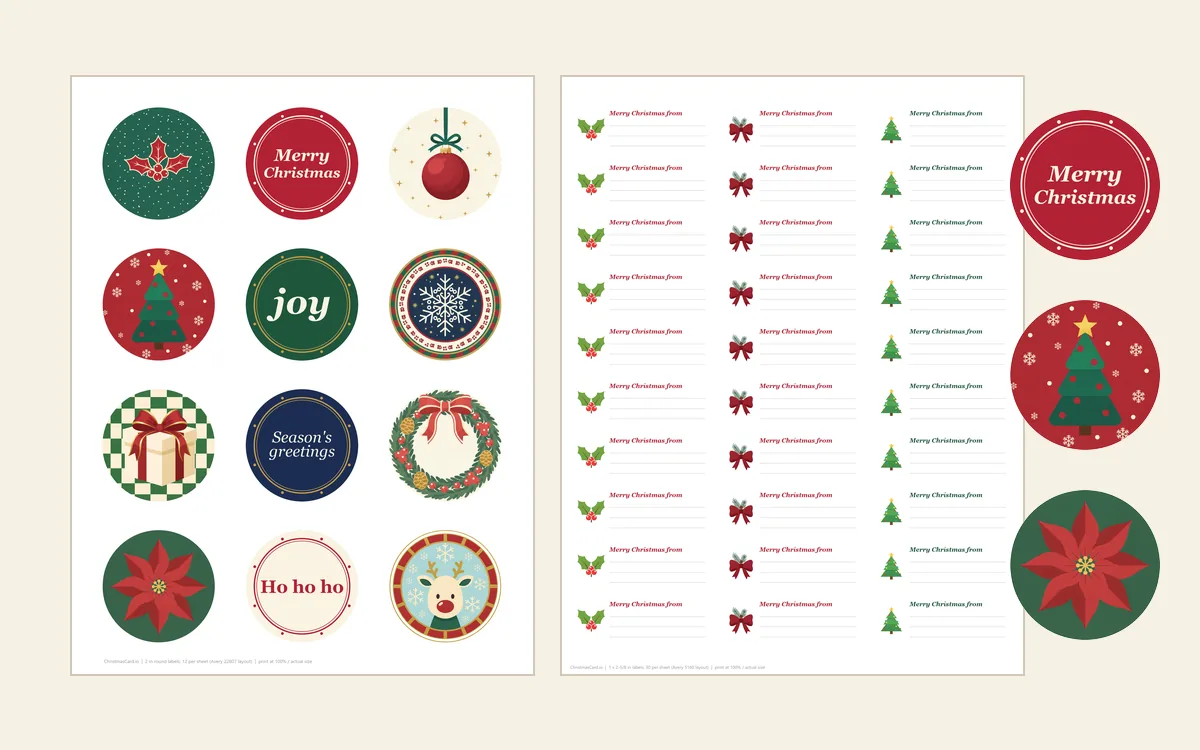
Download both sheets (2-page PDF, 1.3 MB)
Pair these printable sticker sheets with free Christmas clipart PNGs to add festive trees, ornaments, and cheerful holiday details to handmade cards for 2027.
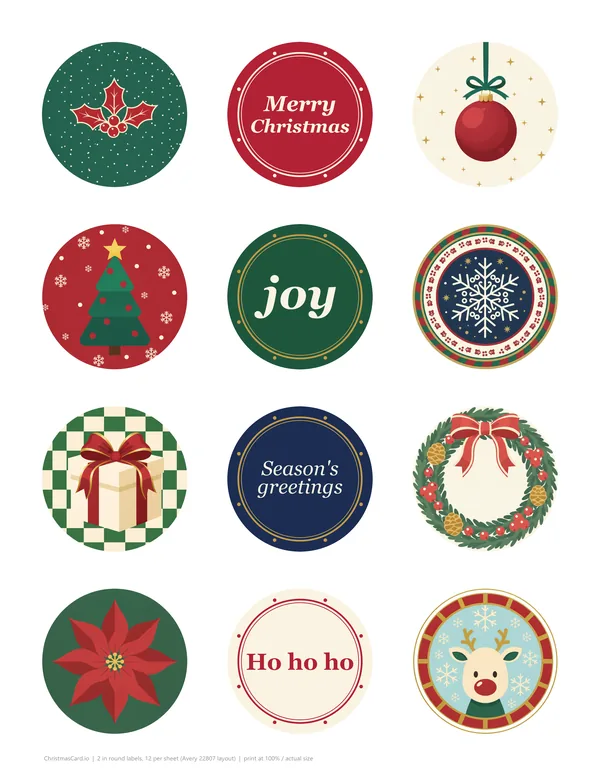
12 round envelope seals
2 inch circles, 12 per US Letter sheet, Avery 22807 layout.
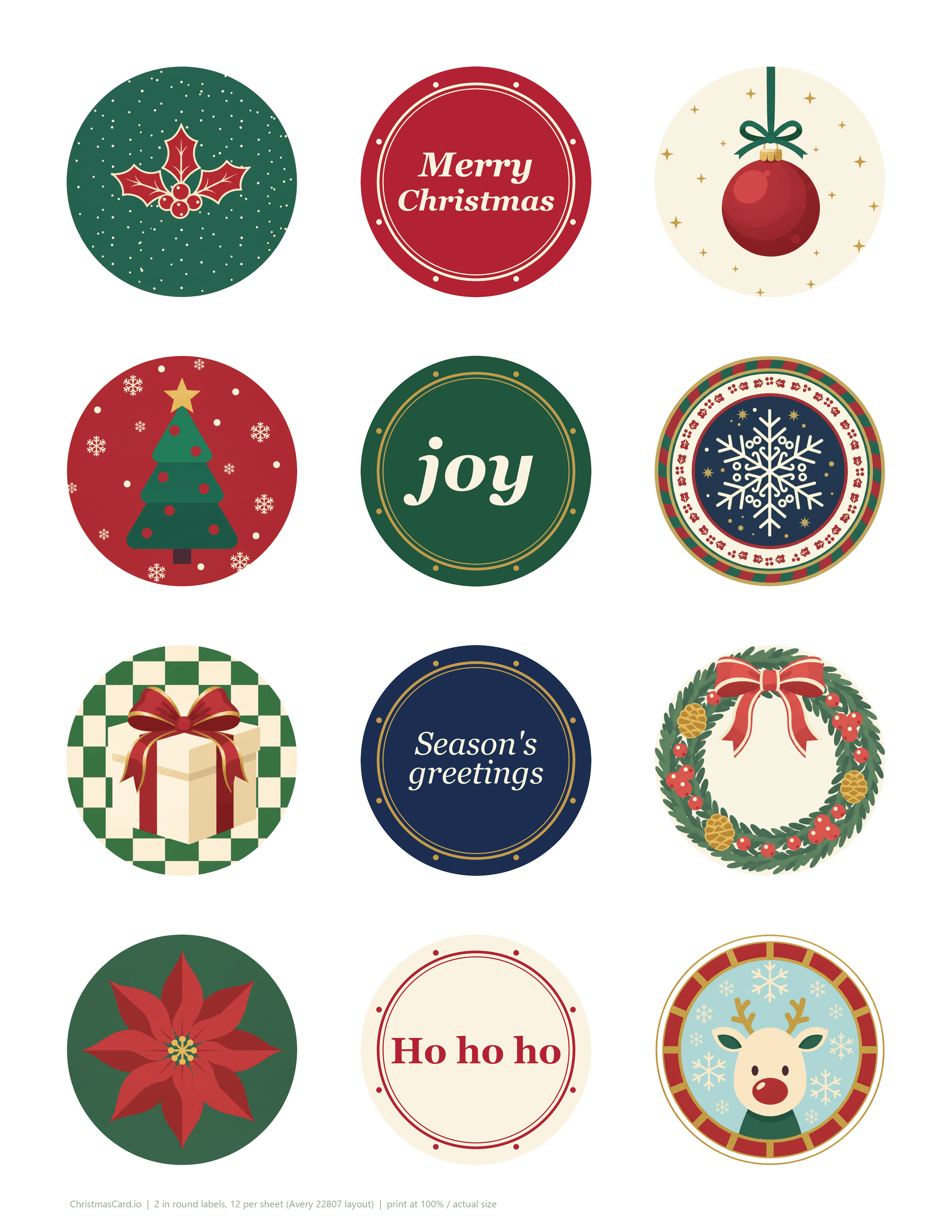
Holly, ornament, tree, snowflake, gift, wreath, poinsettia and a reindeer, plus four lettering seals: Merry Christmas, joy, Season's greetings and Ho ho ho.
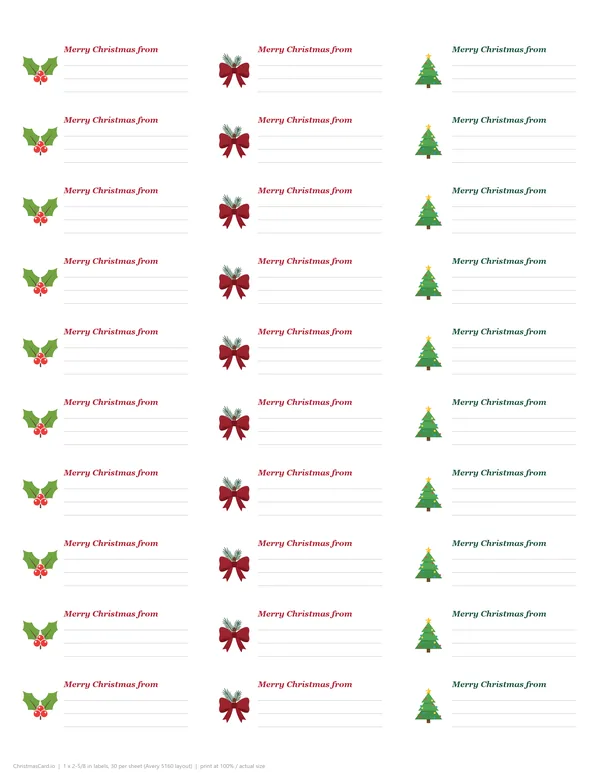
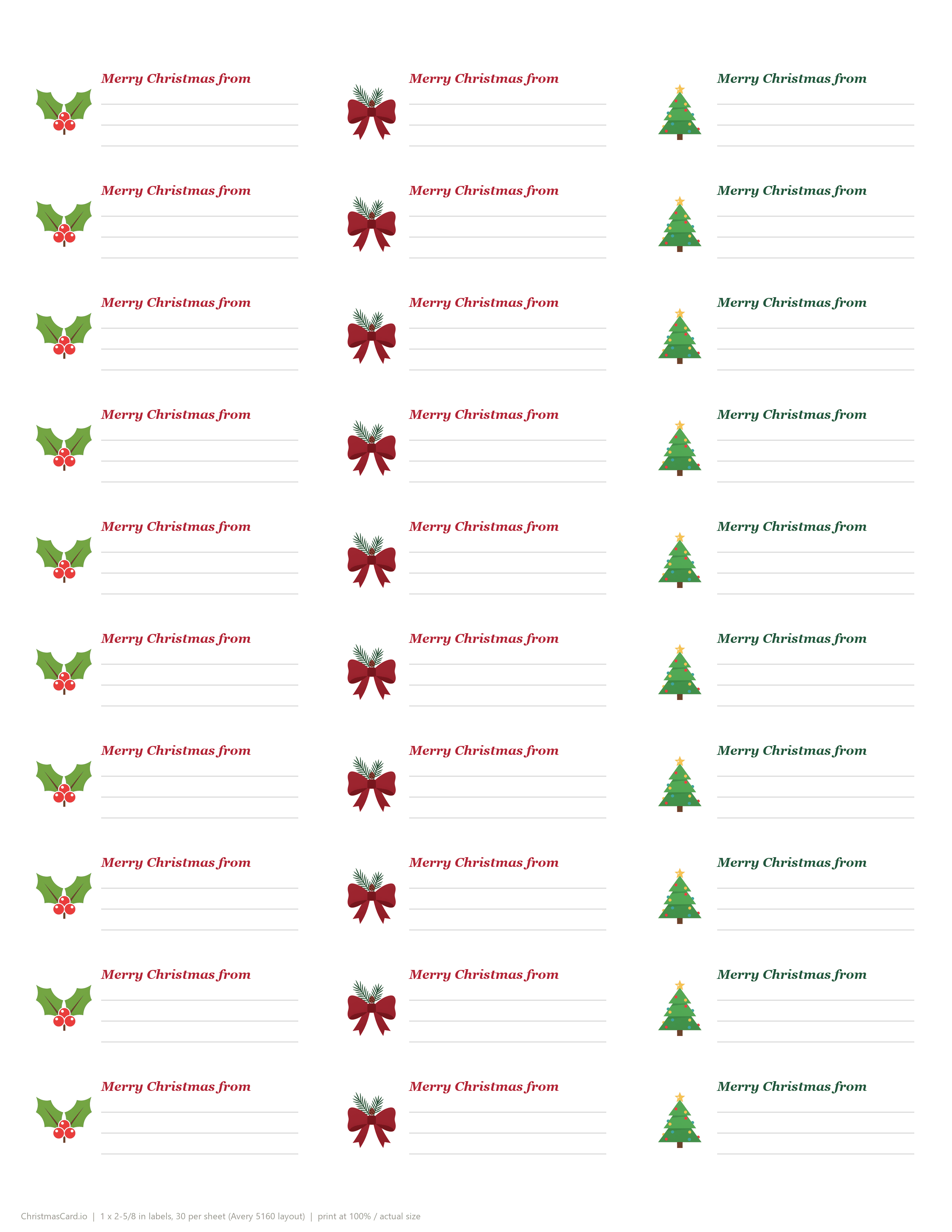
30 return address labels
1 x 2-5/8 inch labels, 30 per sheet, Avery 5160 layout.
A small holly, bow or tree on the left, "Merry Christmas from" in red or green, and three light lines for your name and address.
Both sheets are US Letter at 300 dpi. The seal designs were made for ChristmasCard: eight illustrated circles and four lettering seals we set in Georgia, so the words are sharp at 2 inches and not a fuzzy AI guess at spelling. No cartoon characters, no brand mascots. The reindeer is a generic one with a brown nose (it isn't anybody famous).
What labels to buy
Each sheet is laid out for a common Avery label grid, and the same grid is sold by store brands and online label makers. You don't need the exact Avery product. You need the same measurements.
| Sheet | Label size | Per sheet | Grid | Layout it matches |
|---|---|---|---|---|
| Envelope seals | 2 inch circle | 12 | 3 across, 4 down | Avery 22807 and compatible 2 inch round labels |
| Return address labels | 1 x 2-5/8 inch | 30 | 3 across, 10 down | Avery 5160 and compatible 30-up address labels |
Label sizes and counts were checked against Avery's template pages in November 2026. Avery doesn't print the margins on the product page, so we built the seal sheet from the published template grid (5/8 inch top and side margins, circles 2-5/8 inches apart across). Each printed circle is 2.06 inches wide, a hair bigger than the label, so a slightly off-center print still covers the edge instead of leaving a white crescent.
No label stock in the house? Full-sheet sticker paper works too. Print the seal sheet on it and cut the circles with scissors, or use a 2 inch circle punch from the scrapbook aisle. It's slower (12 circles take about ten minutes by hand), but the result looks the same on an envelope.
How to print Christmas stickers at home
- Download the PDF. PDFs keep the page at exactly 8.5 x 11 inches, which is the whole point with labels.
- In the print dialog choose US Letter and set scale to 100% or Actual size. "Fit to page" shrinks the page by a few percent and the bottom row drifts off the labels.
- Print one copy on plain paper first. Lay it on top of a label sheet and hold both up to a window. If the circles sit inside the label outlines, you're set.
- Check which way your printer feeds. Most home inkjets print on the side facing up in the rear tray and facing down in a front cassette. Mark the top of a plain sheet with an arrow and run it once if you're not sure.
- Load one label sheet and print. Choose a "labels" or "heavy paper" setting if the driver has one, and let inkjet ink dry for a few minutes before you peel.
Inkjet and laser label sheets are different products. Inkjet labels have a coating that holds wet ink; laser labels are built to survive the heat of the fuser. Buy the type that matches your printer, as listed on the label package.
If your color comes out darker than on screen (common with deep reds on matte labels), print the seals in "best" quality instead of "normal". It slows the printer down and puts the dots closer together, which keeps the cream lettering on the red and navy seals crisp.
The return address labels
Each of the 30 labels has a little holly sprig, red bow or tree on the left and "Merry Christmas from" above three faint lines. You can handwrite on them with a fine-tip pen, which takes about 15 minutes for a whole sheet and looks friendly. Or open the PDF in a free PDF editor, add text boxes over the lines, and print. The lines are light gray, so typed text sitting on top of them still reads cleanly.
Want the address typed and merged from a spreadsheet instead? A label app does that much faster than text boxes. We compared several in apps for Christmas card address labels. And if you're deciding between a label, a stamp and handwriting on the flap, our guide on adding return addresses to Christmas card envelopes covers where each one goes.
Single stickers for digital cards
The 12 seal designs are also here as single transparent PNGs, 400 pixels across. They work on an ecard, a photo card you're designing in Canva, a Google Slides card, or an Instagram story. Tap or click to download.
 Holly sprig
 Merry Christmas lettering
 Red ornament
 Christmas tree
 Joy lettering
 Snowflake
 Gift box
 Season's greetings lettering
 Wreath
 Poinsettia
 Ho ho ho lettering
 Reindeer
Building a photo card and want a full border around the picture instead of a small sticker? The free Christmas photo card frames have a see-through window for your photo and a blank panel for your names.
Mailing rules for stickers and seals
The US Postal Service sorts letters by machine, and the machine reads the front of the envelope. So the rules are mostly about what you cover up:
- Keep stickers off the delivery address and the return address.
- Don't cover the stamp or put a sticker where it could look like postage, near the top right corner.
- Leave the bottom 5/8 inch of the front empty. That strip is where the sorting machine prints its barcode.
- Seals on the back flap are fine. A paper seal over the flap point is the classic spot and also holds the flap shut if the glue is weak.
Thickness is the other rule. A standard letter has to stay flat and no more than 1/4 inch thick, and one First-Class Forever stamp ($0.82 on usps.com, checked November 2026) covers up to 1 ounce in a rectangular envelope. A paper sticker adds almost nothing to either number. A wax seal, a 3D foam sticker or a glued-on bow is different: it makes the envelope lumpy or stiff, and USPS can treat it as nonmachinable, which costs extra. If you love the wax look, read how to mail Christmas cards with wax seals before you buy 60 of them, or stick with flat printed seals like the ones above.
Square envelopes are their own trap. A square card pays the nonmachinable price even with nothing stuck to it, so a sticker won't be the reason it costs more.
Ways to use the stickers beyond the flap
A seal sheet goes further than 12 envelopes if you're a little creative with it.
Close the card itself. Fold a flat photo card into a printed sleeve, or close a handmade folded card with one seal on the open edge, so the recipient breaks the seal to open it. Kids love doing this part.
Mark gift bags and small boxes. The "Ho ho ho" and "joy" seals are big enough to hold a tissue-paper bag shut. If you want room for a name, the matching printable Christmas gift tags have To and From lines built in.
Decorate the inside of a card. One seal in the corner of a plain card, next to a handwritten line, looks finished without any drawing. If you're stuck on what to write next to it, there's a long list of Christmas card wording ideas sorted by who the card is for.
Seal a letter to Santa. A child's letter with a reindeer seal on the back looks official. The letter to Santa templates print on the same US Letter paper.
Print at home or buy stickers?
Store-bought Christmas stickers come in rolls of 100 to 500, and a big roll is often cheaper per sticker than label sheets. Printing your own makes sense when you want a specific mix (a few lettering seals, a few illustrated ones), when you need them tonight, or when you want the seals to match a set of return address labels. For a mailing of 30 to 60 cards, five sheets of round labels cover it.
Frequently asked questions
Can you put stickers on Christmas card envelopes?
Yes, USPS accepts flat paper stickers and seals on letters as long as they stay off the delivery address, the return address, the stamp and the barcode strip along the bottom edge. The back flap is the safest place for a seal.
Where do you put a sticker on a Christmas card envelope?
Put a round seal in the middle of the back flap, over the point where the flap meets the envelope. A return address label goes in the top left corner of the front or centered on the back flap.
Do envelope seals add postage?
Flat paper stickers do not add postage. Raised items such as wax seals, thick foam stickers or anything lumpy can make the letter nonmachinable, which costs more than a regular stamp.
What size are Christmas envelope seals?
Most Christmas envelope seals are 1 to 2 inches across. The ChristmasCard seal sheet uses 2 inch circles, 12 per sheet, which covers the flap point of A7 and A9 envelopes without reaching the edges.
What paper do I need to print Christmas stickers at home?
Use blank 2 inch round labels (Avery 22807 or a sheet with the same layout) for the seals and 30-up address labels (Avery 5160 or compatible) for the return labels. Full-sheet sticker paper also works if you cut the circles with scissors or a 2 inch circle punch.
Are the ChristmasCard sticker sheets free to use?
Yes, both sheets are free for personal, family, school and church use, and you can print as many copies as you like. Please do not sell the files or post them on another website.
Can I use these stickers on a digital Christmas card?
Yes, each of the 12 seal designs is also available as a 400 x 400 pixel transparent PNG. Drop it onto a photo card in Canva, Google Slides or a phone photo editor like any other image.
Why do my printed stickers not line up with the labels?
The print was scaled. Set the print dialog to 100% or Actual size instead of Fit to page, print one test copy on plain paper, then hold it against a label sheet in front of a window to check the alignment.