
Christmas card backgrounds and borders: 16 free printables
Updated November 20, 2026
Quick answer: Below are 16 free Christmas card backgrounds and borders you can print: six 5x7 portrait designs (1500 x 2100 px), six 5x7 landscape designs (2100 x 1500 px) and four US Letter stationery pages (2550 x 3300 px), all at 300 dpi. None has words in the art, so you add your own greeting, names or photo in Canva, Word or Google Docs. Print on 65 to 80 lb cardstock.
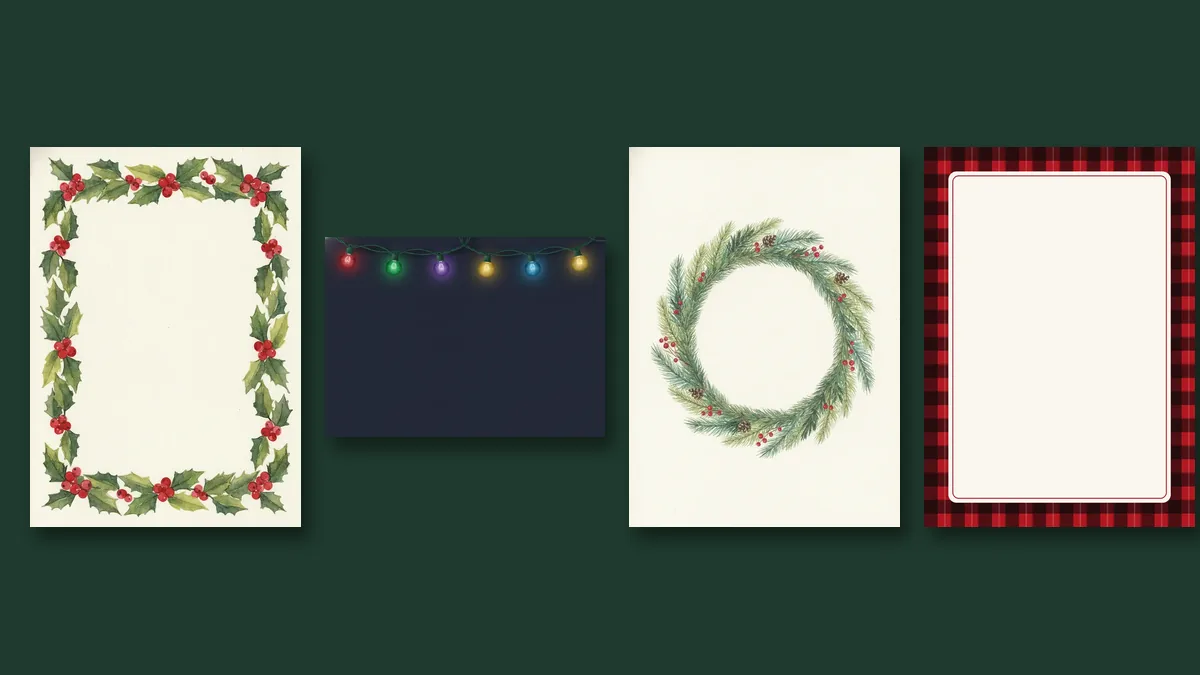
A blank card with a good border does most of the design work for you. The greeting can be three words in a nice font; the photo can be the slightly blurry one where everyone is actually laughing. These backgrounds were made for that: each one leaves a clear empty area, and none of them has lettering baked in, so nothing fights with what you write.
For more festive designs, browse free Christmas wallpaper designs for classic card style scenes or choose cute Christmas wallpaper with kawaii characters and soft pastel colors.
Download all 16 as one PDF (6.4 MB)5x7 portrait card backgrounds
Portrait is the classic folded-card shape and the most common flat photo card. Every file is exactly 5 x 7 inches at 300 dpi.
-
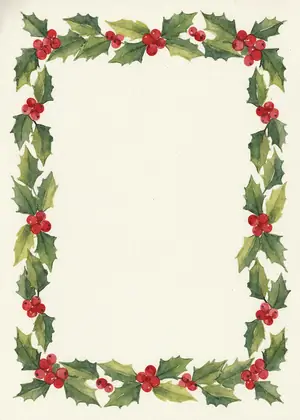 Watercolor holly border Holly on all four edges, wide cream center for a message or a 4x6 photo. Download JPG, 1500 x 2100 px
-
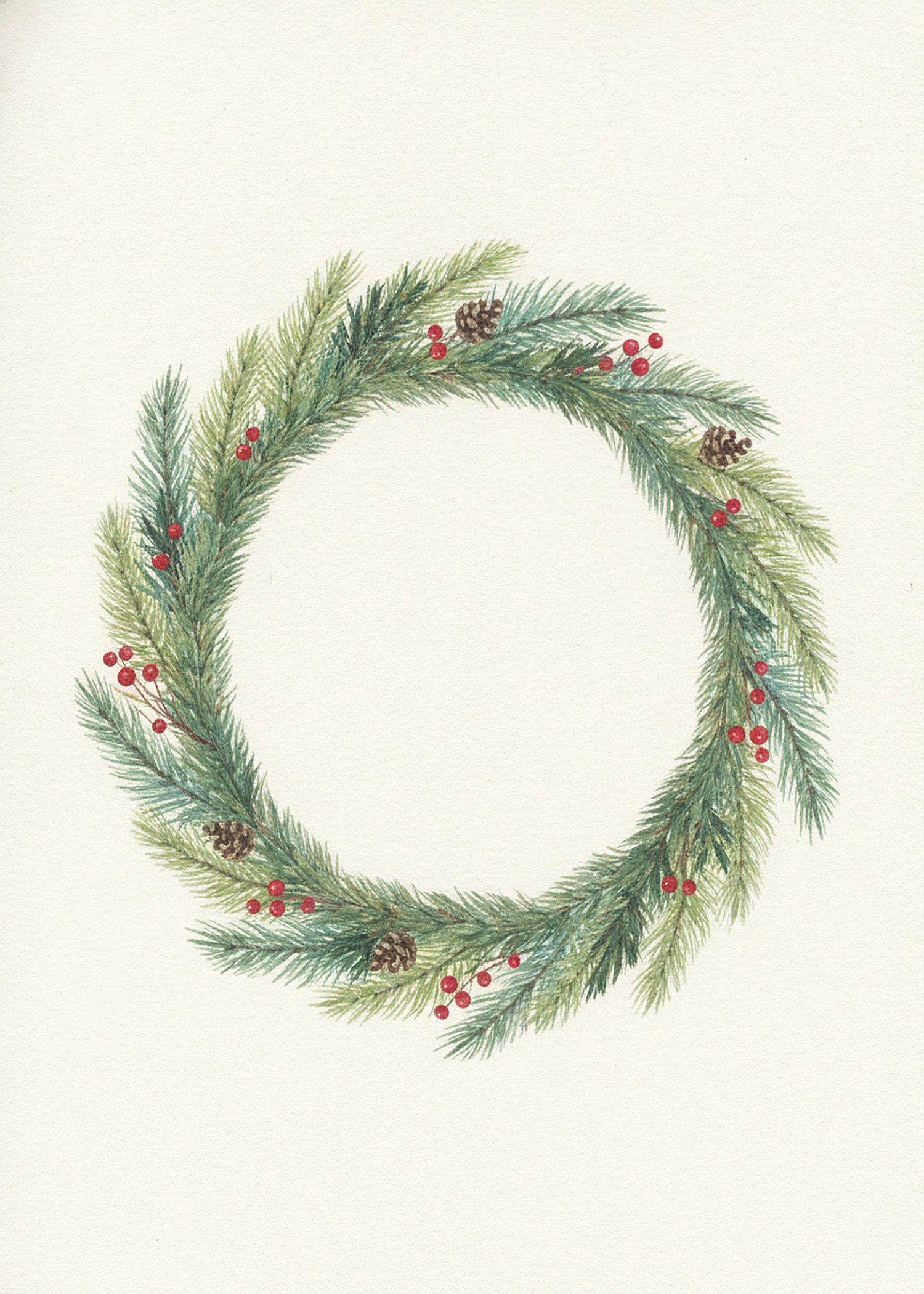
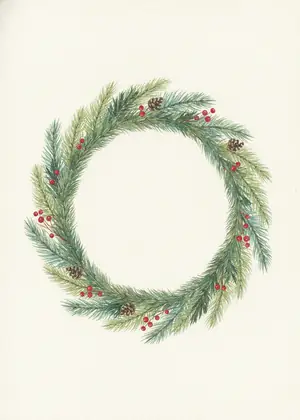 Pine wreath Round wreath with an empty middle that fits a name, a monogram or a round photo. Download JPG, 1500 x 2100 px
-
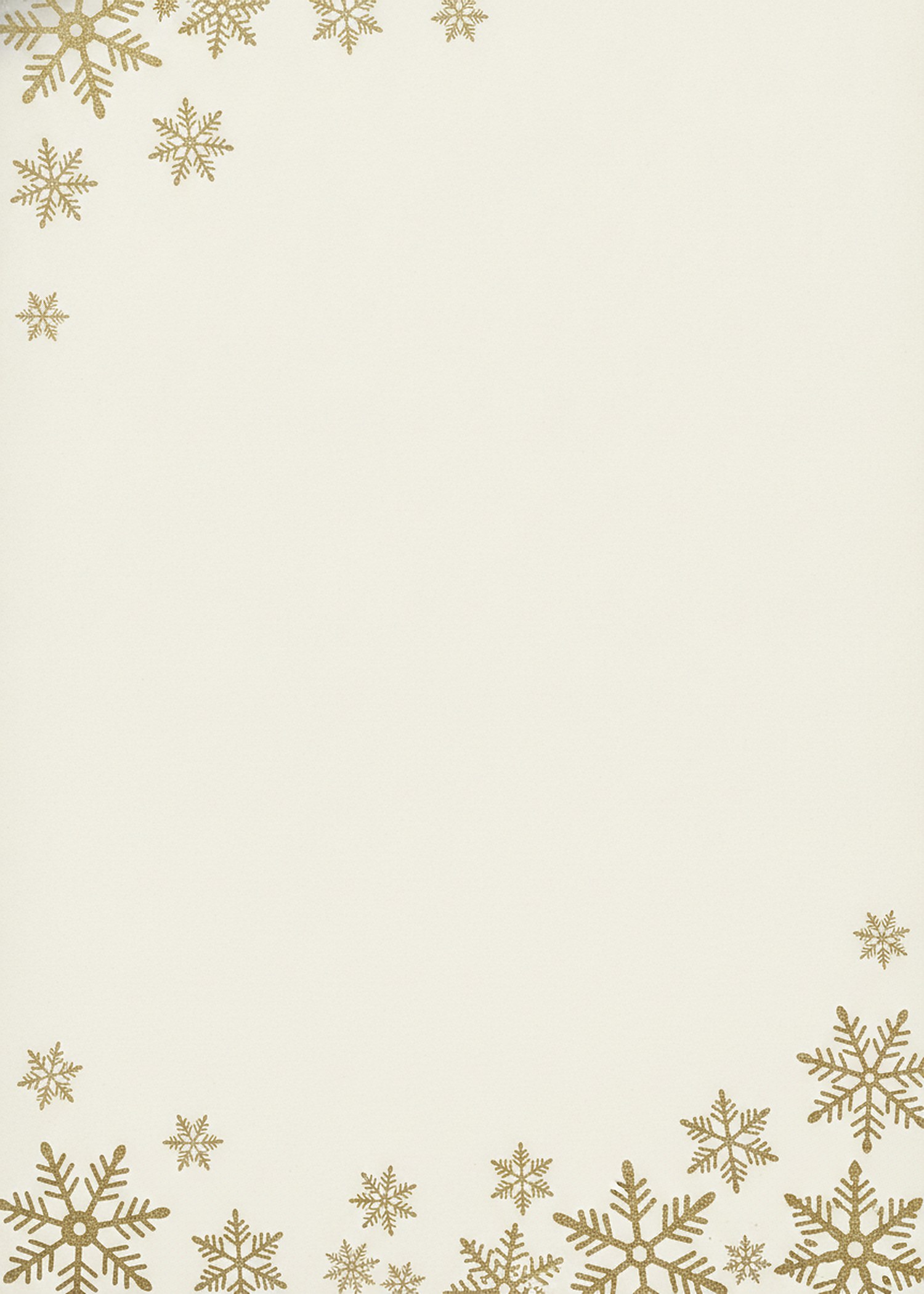
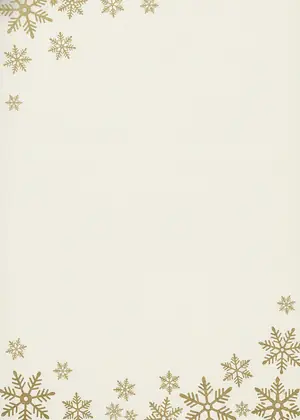 Gold snowflakes Snowflakes in the top corners and along the bottom, ivory everywhere else. Download JPG, 1500 x 2100 px
-
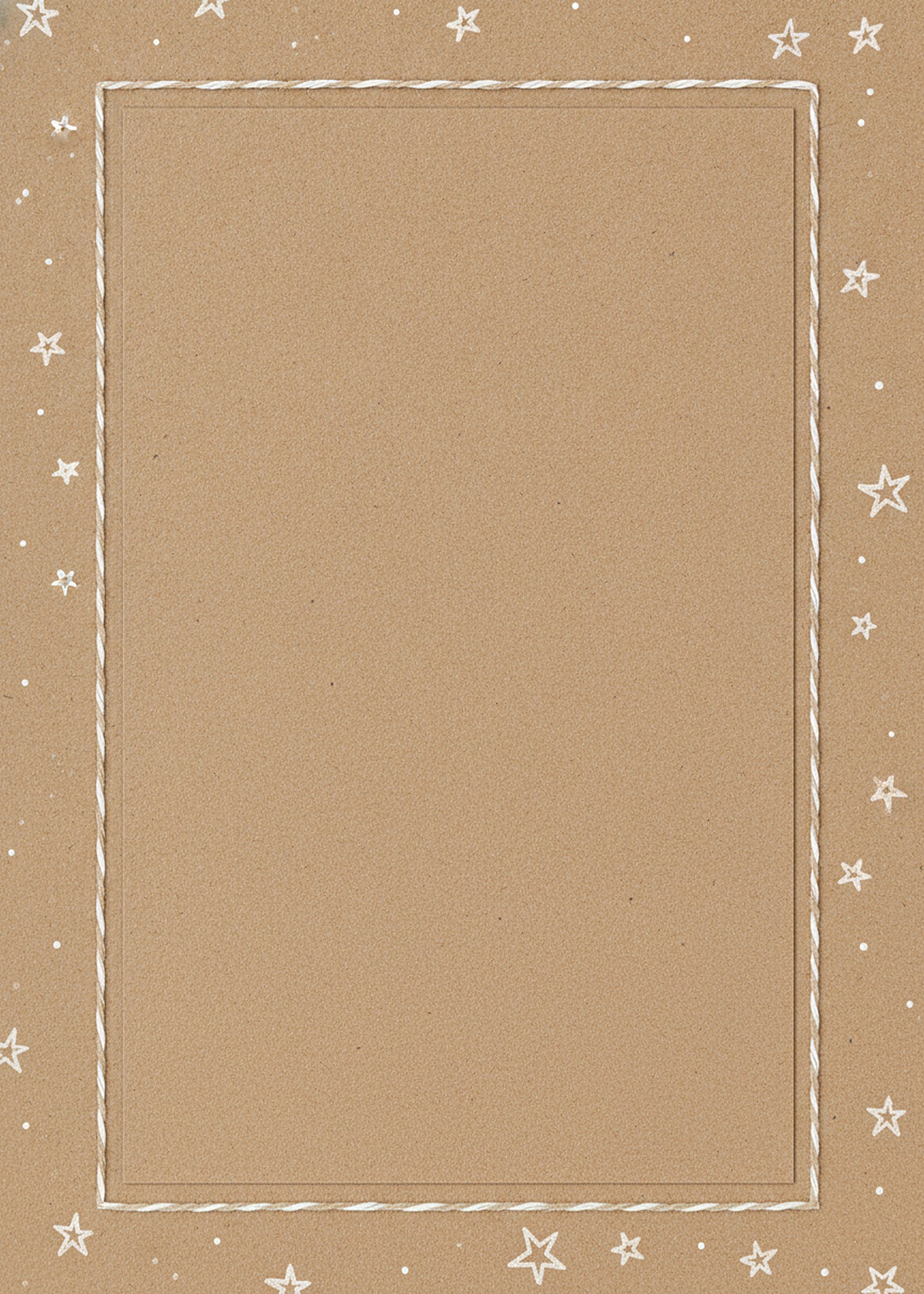
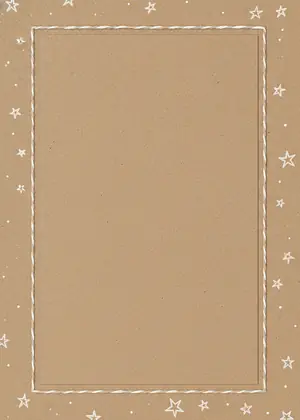 Kraft paper and stars Brown kraft texture with a twine-style frame. Rustic, prints well on matte stock. Download JPG, 1500 x 2100 px
-
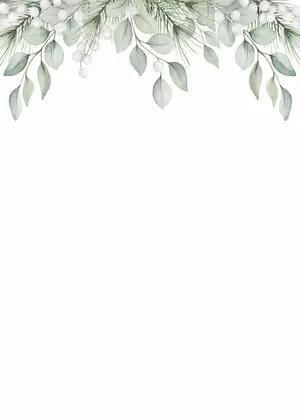 Eucalyptus garland Greenery across the top only, so the lower two thirds take a long greeting. Download JPG, 1500 x 2100 px
-
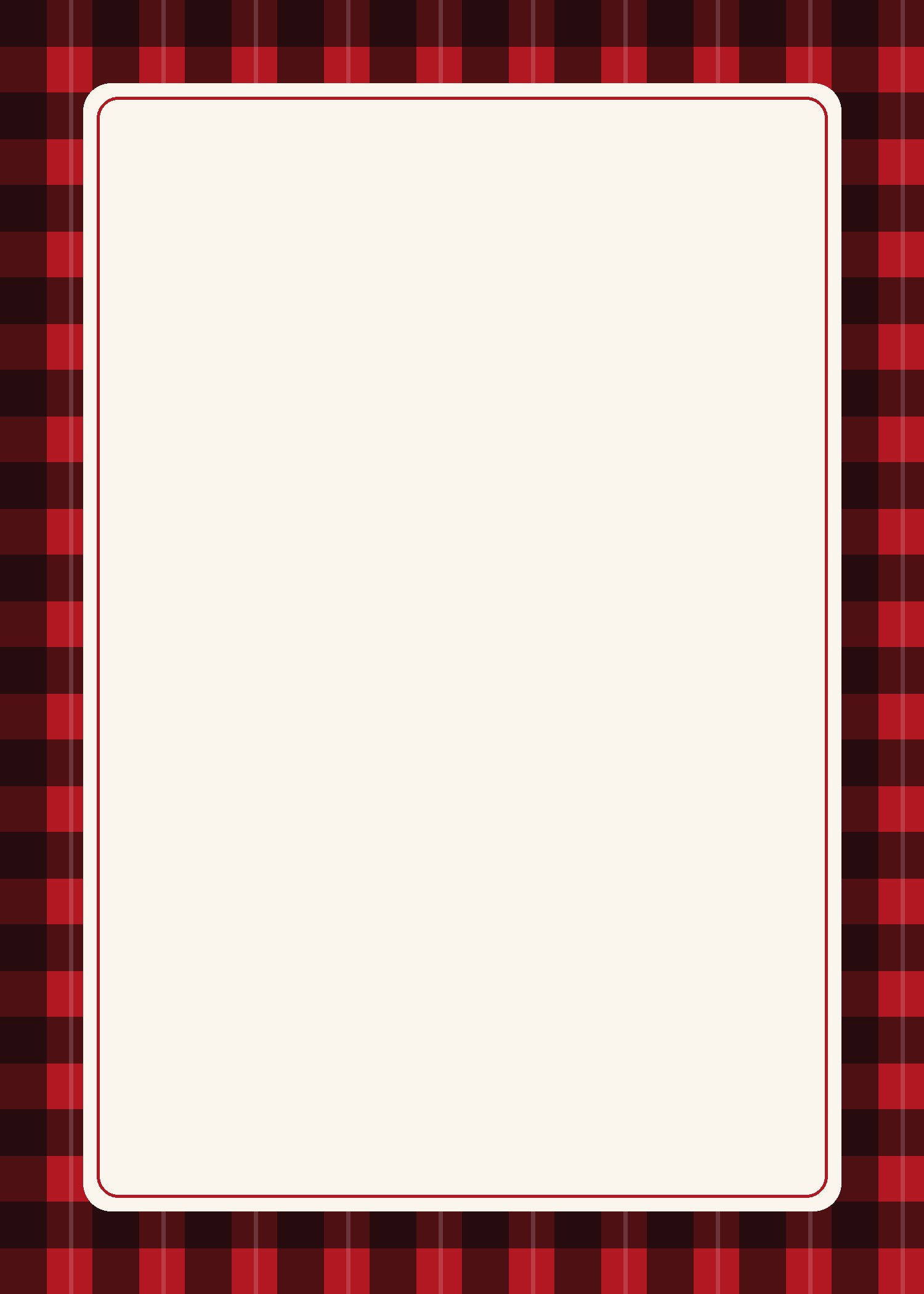
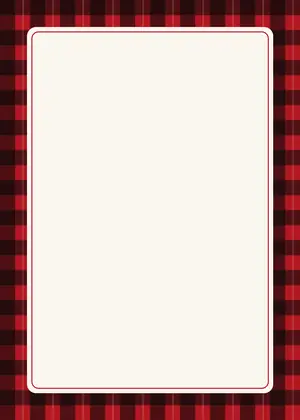 Buffalo plaid frame Red and black plaid edge around a rounded cream panel with a thin red line. Download JPG, 1500 x 2100 px
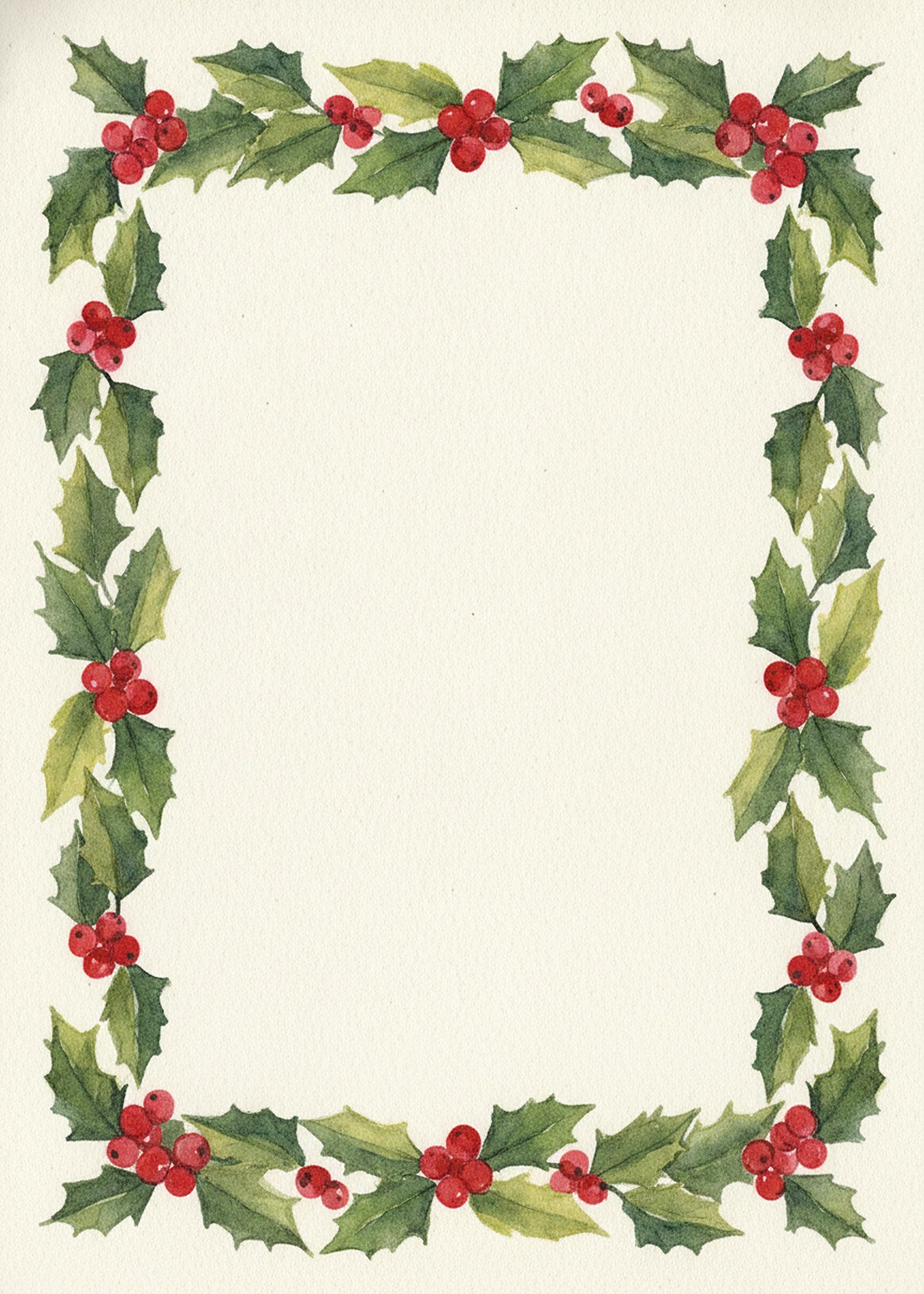

5x7 landscape card backgrounds
Landscape suits group photos and wide greetings. They also work as the back of a two-sided flat card, with the photo on the front.
-
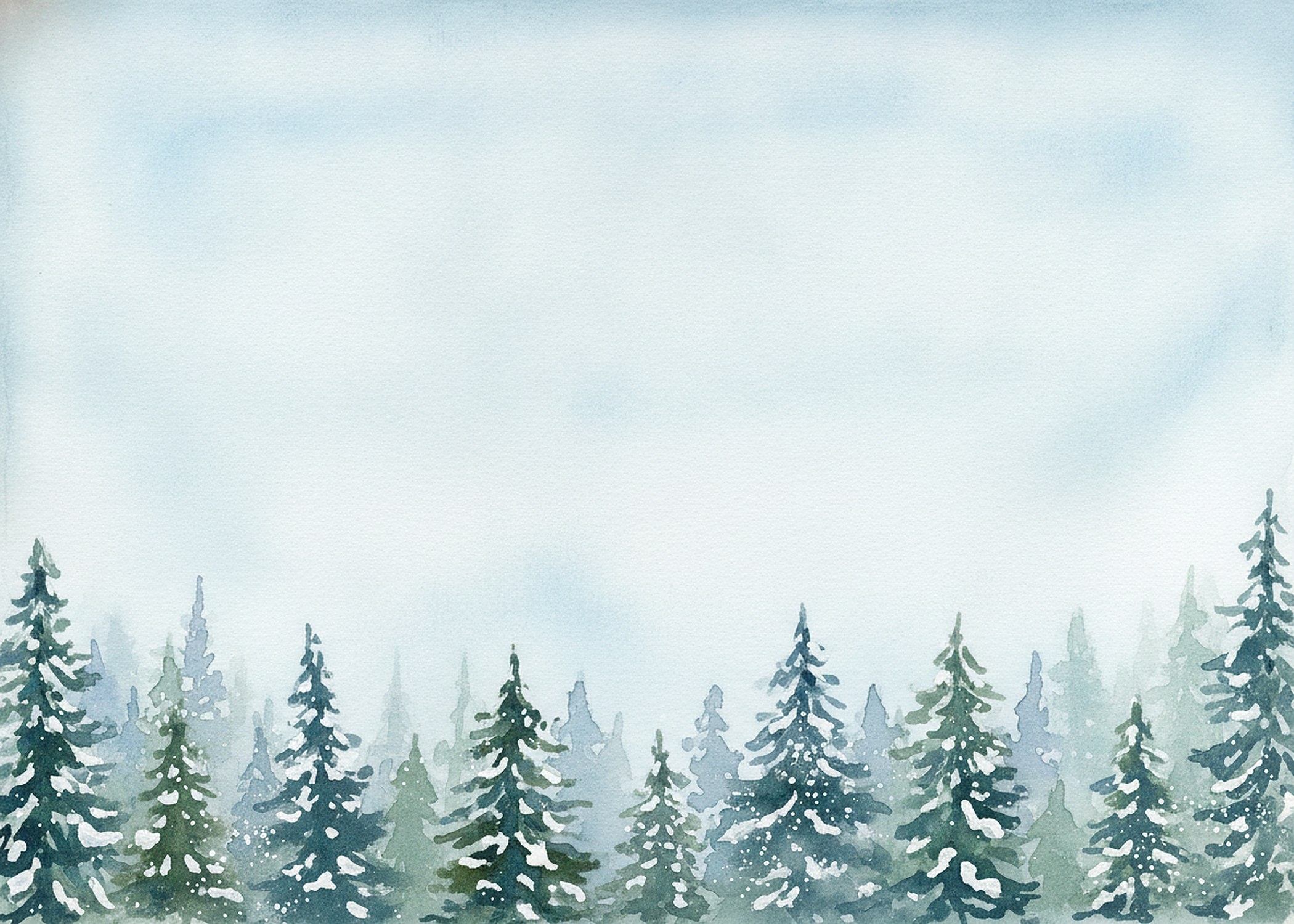
 Snowy pine forest Watercolor trees along the bottom, pale sky above for a one-line greeting. Download JPG, 2100 x 1500 px
-
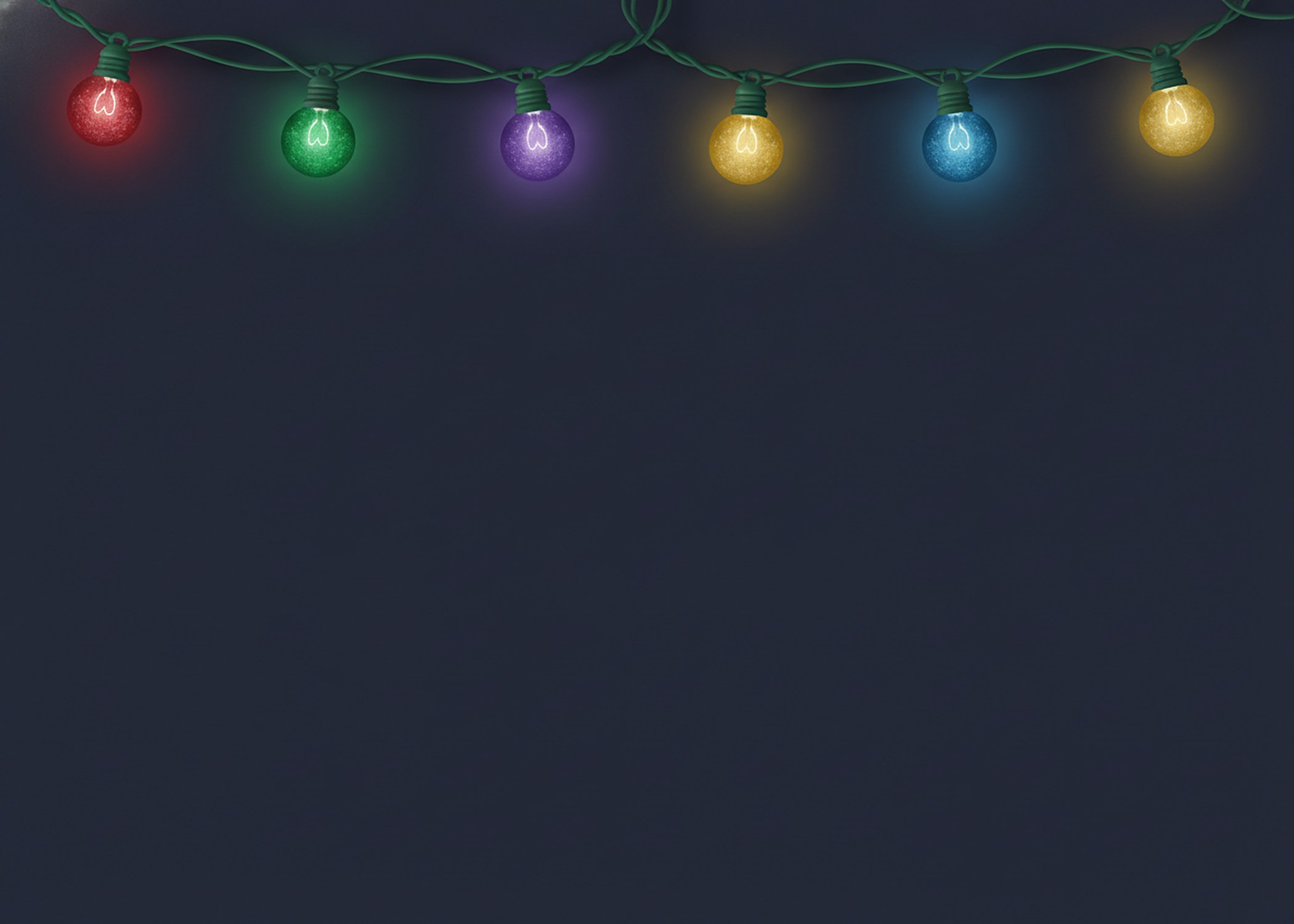
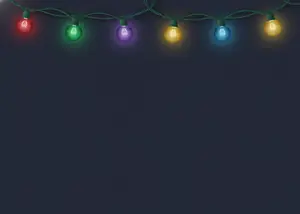 String lights on navy Colored bulbs across the top of a dark page. Use white or gold text. Download JPG, 2100 x 1500 px
-
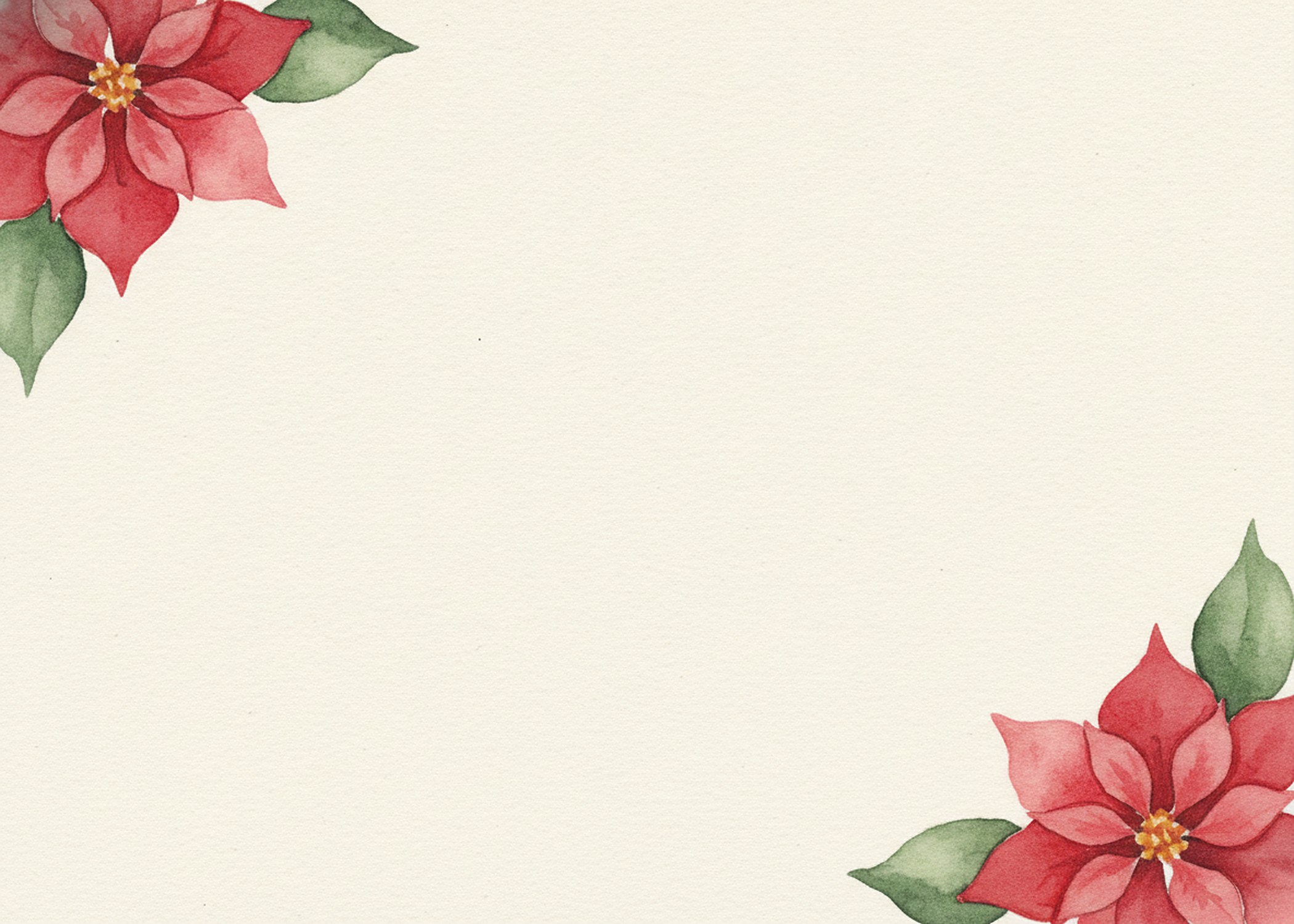
 Poinsettia corners Red poinsettias in two opposite corners, lots of open space. Download JPG, 2100 x 1500 px
-
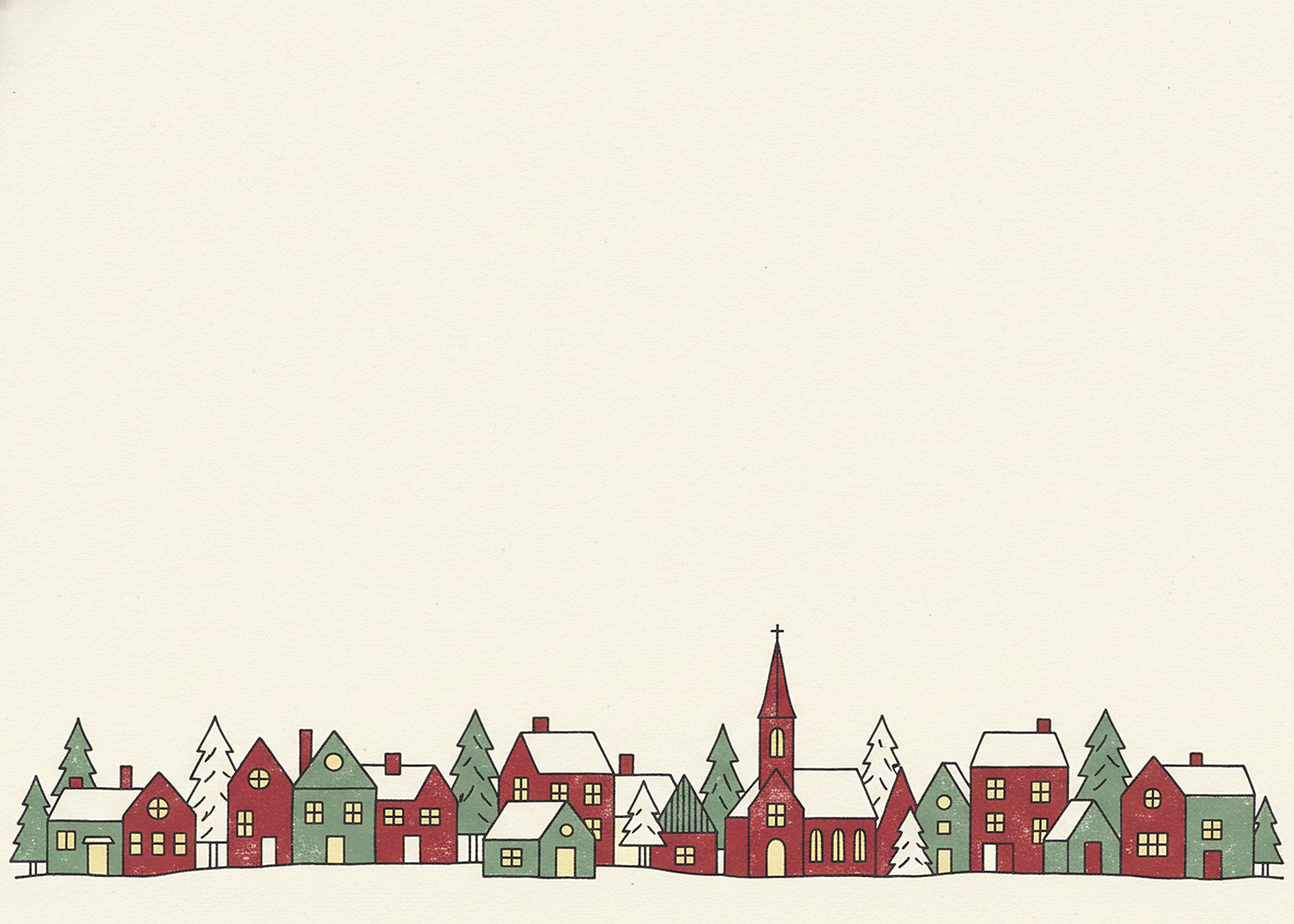
 Little village skyline Red and green houses along the bottom edge, cream above. Download JPG, 2100 x 1500 px
-
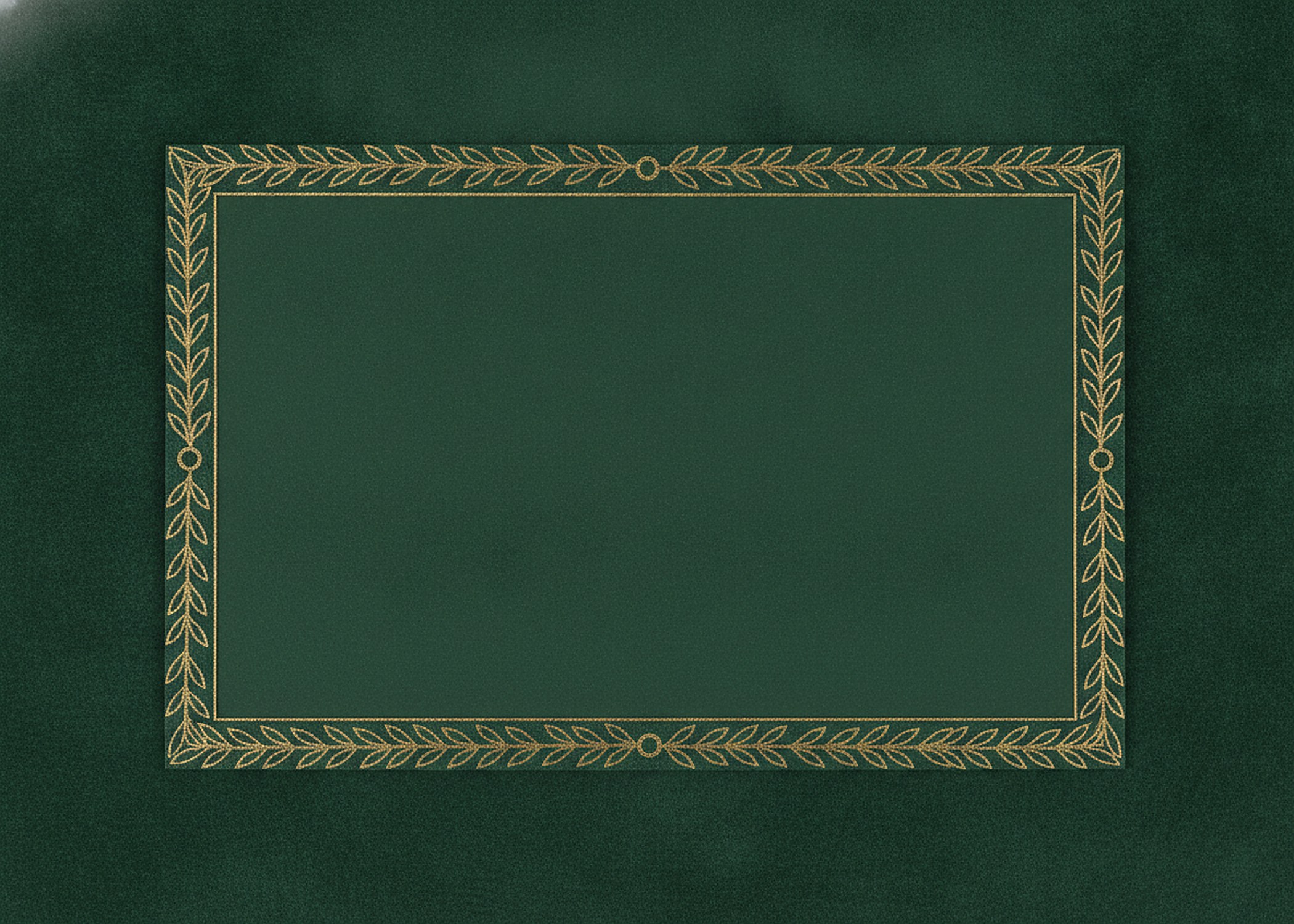
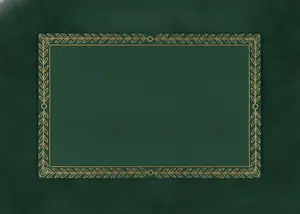 Green velvet, gold frame A thin gold laurel frame on dark green. Elegant with a light photo inside. Download JPG, 2100 x 1500 px
-
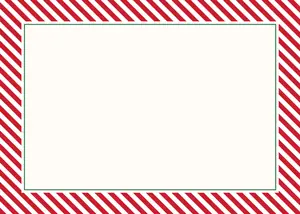 Candy cane stripe border Red and white stripes around a cream panel with a green inner line. Download JPG, 2100 x 1500 px

US Letter stationery for Christmas letters
For the annual family letter, the kids' letter to grandparents or a note tucked in with the card. Full US Letter (8.5 x 11 inches) with the writing area left blank. For what to say in one, see our Christmas letter templates.
-
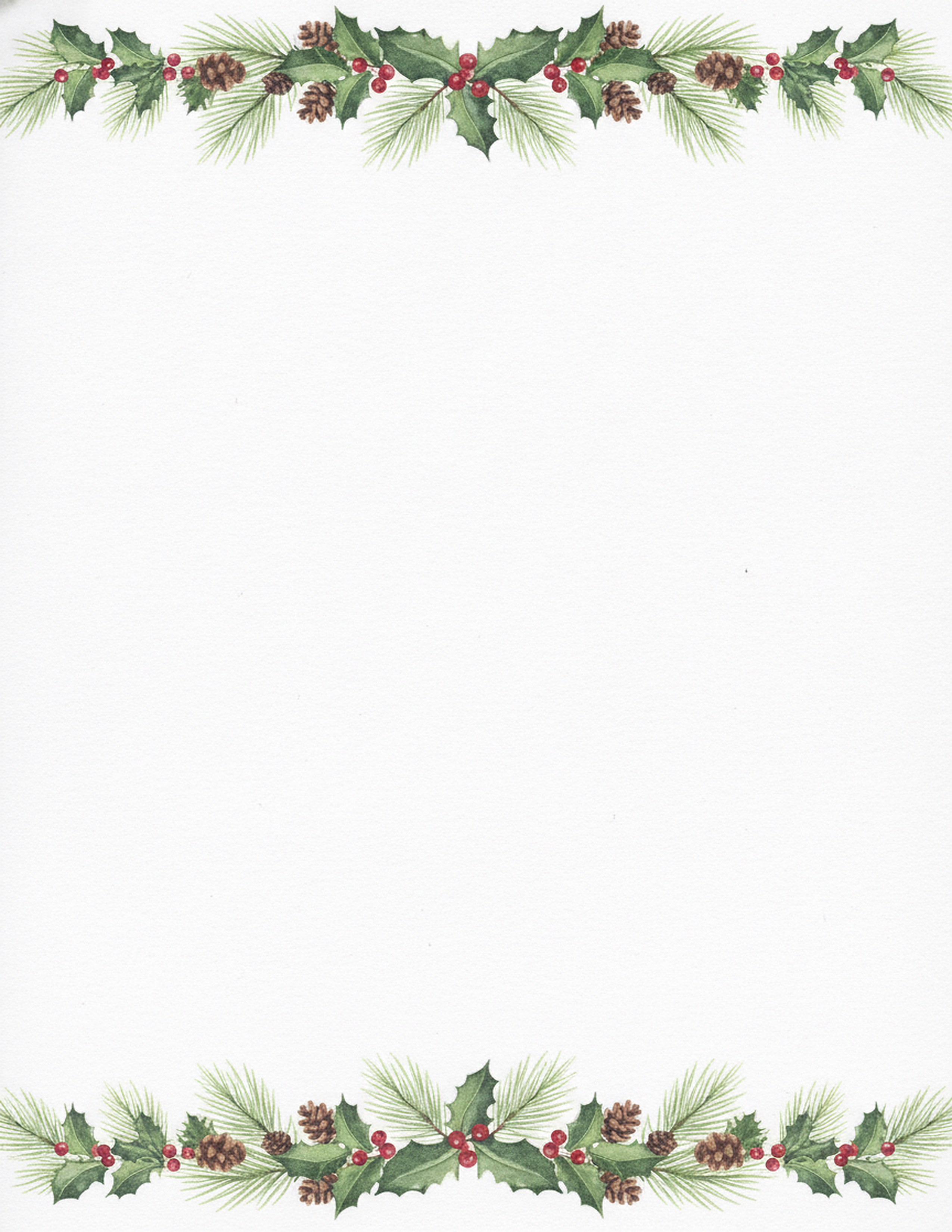
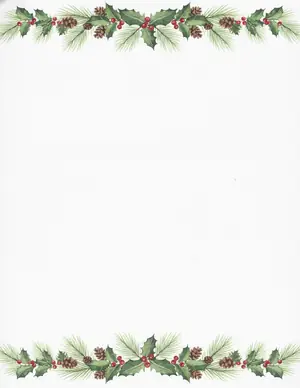 Holly letter stationery Holly band at the top and bottom of a US Letter page for a typed or handwritten letter. Download JPG, 2550 x 3300 px
-
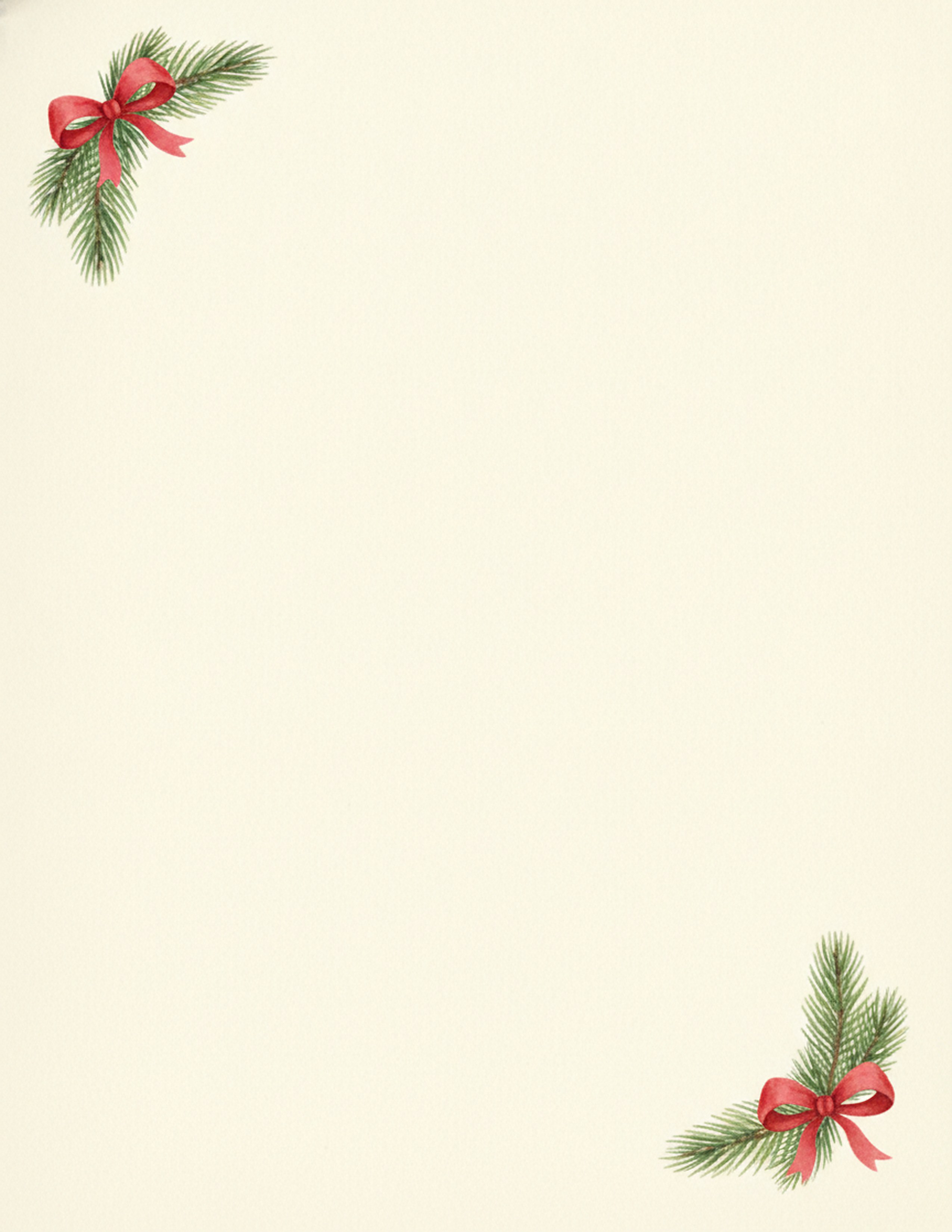
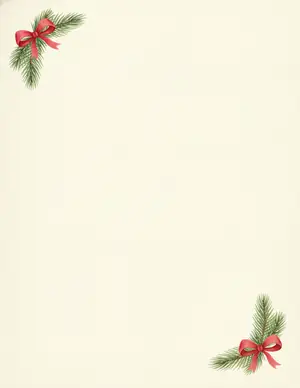 Pine sprig letterhead Two small pine sprigs with red bows in opposite corners. Quiet and adult. Download JPG, 2550 x 3300 px
-
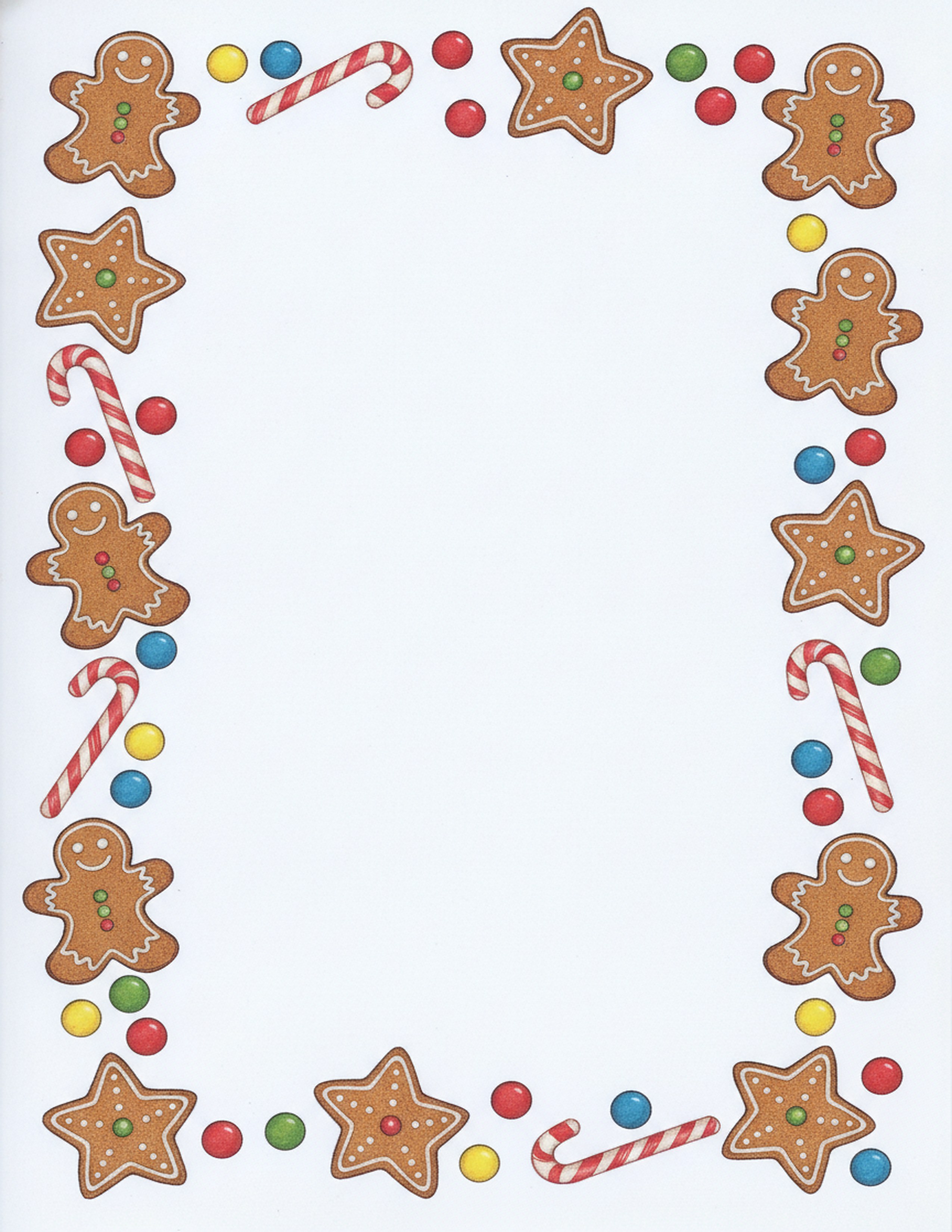
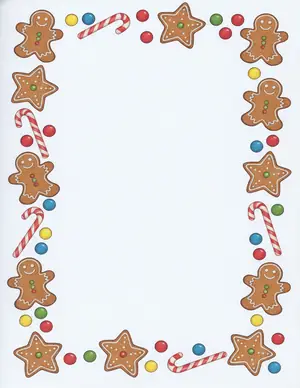 Gingerbread kids stationery Gingerbread cookies and candy canes down both sides. Good for a letter from the kids. Download JPG, 2550 x 3300 px
-
 Gold stars stationery Scattered gold stars at the top and bottom with a thin gold rule under the header space. Download JPG, 2550 x 3300 px

Free for personal cards and for holiday cards your own business sends. Please don't resell the files or blank printed cards made from them. Files are high-quality JPG (300 dpi), 100 to 900 KB each; the PDF has one design per page at its real size.
How to add text or a photo
Pick the tool you already have. All three below are free, and all three can print or export a PDF.
Canva
- Create a design with custom size 5 x 7 in (or 7 x 5 in for landscape, 8.5 x 11 in for stationery).
- Upload the JPG, drag it onto the page, then right-click it and choose Set image as background. On the phone app, tap the image and look for the same option in the bottom toolbar.
- Add a text box for the greeting and drop your photo into the empty area. Keep text at least 1/4 inch from every edge.
- Share, Download, PDF Print. That keeps the full 300 dpi.
Microsoft Word
Set the page size first: Layout, Size, More Paper Sizes, then 5 x 7 inches, and set all margins to 0.25 inch. For the background, Design, Page Color, Fill Effects, Picture fills the whole page and stays put while you type. The other way is Insert, Pictures, then Wrap Text, Behind Text, and stretch the picture to the page edges; that's easier to move but easier to nudge by accident too. This is also the fastest answer to "how do I get a Christmas border in Word": Word's own page borders are thin clip-art lines, and a full-page image looks far better.
Google Docs
Go to File, Page setup, make sure the document is in Pages format (not Pageless), and type 5 and 7 inches as the size. Insert, Image, Upload from computer, then select the image, open Image options, Text wrapping, Behind text, and drag the corners to the page edges. Choose Fix position on page so it doesn't jump around while you edit. If your words are hard to read on a busy part, Image options, Adjustments, Transparency fades the picture a little.
Adding a photo? A frame overlay with a ready-made photo window is often easier than placing a photo on a border by hand; we have Christmas photo card frames for that. And if you'd rather type a greeting and print without any layout work, the printable Christmas card maker does it in the browser.
Printing: borderless or with a margin
This is where most homemade cards go wrong. A design that runs to the edge will come out of a normal home print with a thin white frame, because the printer can't put ink right at the edge of the sheet unless it has a borderless mode.
| Situation | What to do |
|---|---|
| Printer has borderless 5x7 and you have 5x7 photo paper or cardstock it accepts | Turn on Borderless (sometimes called Print to edge) in the print dialog, set the paper type, print at 100 percent. The printer enlarges the image slightly, so keep text away from the edges. |
| No borderless mode, printing on Letter cardstock | Print two 5x7 cards per Letter sheet or one at actual size, then trim with a paper cutter. Cut just inside the design so no white shows. |
| Printer leaves a margin and you can't trim neatly | Use a design with a plain outer edge (pine wreath, eucalyptus garland, poinsettia corners, pine letterhead). A white margin around those looks deliberate. |
| Sending to a print shop or online printer | Most ask for 1/8 inch bleed on every side, so the file should be 5.25 x 7.25 inches. Upload the PDF from Canva with bleed turned on, or ask the shop to extend the edge color. Check their template first. |
For paper, 65 to 80 lb cover cardstock (about 176 to 216 gsm) is the safe range for a home inkjet; feed it from the rear or manual tray if your printer has one. Glossy photo paper makes the string lights and velvet designs look richer, while matte cardstock suits the watercolor and kraft ones and is easier to write on. More on sizes and print settings in our guide to Christmas card sizes for printing.
Matching envelope liners
A liner is a sheet of patterned paper glued inside the envelope flap. It costs a few cents and makes a home-printed card look like it came from a stationery shop. The plaid, candy cane stripe and gold stars designs are the best ones for this because they are patterns rather than scenes, so they still look right after you cut them into a pointed flap shape.
- Print the design on regular 24 lb paper. Cardstock is too thick and the envelope won't close.
- Open an empty envelope flat, lay it on the back of the print and trace around the flap and down the sides.
- Cut about 1/4 inch inside your line all the way around, and trim another 1/2 inch off the bottom so the liner sits above the card slot.
- Slide it in, fold the flap down over it, and glue only the flap part with a glue stick.
A 5x7 card goes in an A7 envelope (5.25 x 7.25 inches). Liner shapes differ between envelope brands, so trace your own rather than trusting a printed template. When you're ready to send, the Christmas card mailing timeline lists the dates to aim for.
Which design for which card
- A family photo card: buffalo plaid frame or candy cane stripe border, with the photo filling the cream panel.
- A formal card to clients or colleagues: green velvet with gold frame, or gold snowflakes, with a short line in a serif font.
- A card from the kids: the little village skyline, or the gingerbread stationery for a full letter.
- A long handwritten note: eucalyptus garland, since two thirds of the card is open.
- A newsletter-style update: holly letter stationery, printed double-sided if the year was eventful. Our family newsletter Christmas card ideas help with what to put in it.
How we made these designs
Thirteen of the 16 started as written briefs (what goes on which edge, how much space to leave empty) and were drawn with Google's Gemini image model; we rejected and redrew three that came out as photos of paper on a table instead of flat artwork. The plaid frame, the candy cane border and the gold stars stationery were drawn in code, so their lines are perfectly crisp. Every file was then resized to the exact print size at 300 dpi and checked at full size for stray marks or lettering. The watercolor designs were enlarged from the original render, so up close they are slightly soft, the way real watercolor on cold-press paper is; at arm's length on a card you won't see it.
Frequently asked questions
How do I get a Christmas border in Word?
Download one of the border JPGs, then in Word use Design, Page Color, Fill Effects, Picture to set it as the page background, or Insert, Pictures and set Wrap Text to Behind Text. Set the page size first (Layout, Size) to 5 x 7 inches or Letter so the border lines up with the edges.
How do I put a Christmas border around a photo?
Open a border in Canva or Google Slides, set it as the background, then place your photo inside the empty center and resize it so the border shows on every side. The holly, plaid and candy cane designs have the widest center panels for a 4x6 or 3.5x5 photo.
What size should a Christmas card background be?
For a 5x7 card printed at 300 dpi, the background should be 1500 x 2100 pixels (portrait) or 2100 x 1500 (landscape), which is the size of the files on this page. A print shop that asks for bleed wants 5.25 x 7.25 inches, or 1575 x 2175 pixels.
Can I print a Christmas card background at home without white edges?
Only if your printer has a borderless mode for that paper size; many inkjets offer borderless 4x6, 5x7 and Letter on photo paper but not on every cardstock. Without it, choose a design with a plain outer edge, such as the eucalyptus garland or the pine wreath, so the white printer margin looks intentional.
What paper should I use for homemade Christmas cards?
Cardstock of 65 to 80 lb cover (about 176 to 216 gsm) feeds through most home inkjets, ideally from the rear or manual tray. Heavier 100 to 110 lb stock looks nicer but often jams a home printer, so check its paper spec first.
Can I use these Christmas card backgrounds for my business cards to clients?
Yes, you can print them on holiday cards your own business sends to clients and staff. You can't sell the files, resell printed blank cards made from them, or upload them to a template marketplace.
Can I put a ChristmasCard background into Canva?
Yes. Upload the JPG to Canva, drag it onto a 5x7 in design, right-click it and choose Set image as background, then add your text and photo on top.
How do I make an envelope liner that matches my card?
Print one of the pattern designs (the plaid, candy cane or gold stars) on thin text-weight paper, trace your envelope flap on the back, trim about 1/4 inch inside the line, and glue it in under the flap. An A7 envelope (5.25 x 7.25 inches) holds a 5x7 card.